 Fynchat
AI Tools and Human Handoff
Give the assistant tools to search your products and open a ticket, order, or booking, and set when it hands the conversation to a human agent.
What are tools?
Tools are the capabilities that let the assistant interact with your apps instead of just talking: searching your product catalog, fetching an order's status, opening a support ticket, registering an interested lead, or booking an appointment. With them, the assistant answers with live, accurate information and takes a real action on your behalf. Tools are managed from the Basics tab on the AI Chatbot settings page.
Enabling tools
- In the Basics tab, turn on the Enable tools option.
- A grid of available tools appears, each with its own toggle and a short description.
- Use Enable all or Disable all for quick control, or toggle each tool individually.
The counter above the grid shows how many tools are enabled out of the total.
Types of tools
Tools fall into categories that the system marks with a clear badge:
| Type | What it means |
|---|---|
| Read tool | Only fetches information (search, lookup). Safe, and included in "Enable all." |
| Write tool 🖊 | Creates or changes real data (opening an order, registering a lead). Sensitive; stays off by default, and each must be turned on manually and deliberately. |
| Always on | Foundational tools that can't be turned off. |
| Workflow | Tied to an automation flow and managed from that flow's page, not here. |
Important note: when you click Enable all, only read tools are turned on. Write tools are sensitive and keep their current state — enable each one deliberately when you need it.
Tools tied to your apps
Which tools are available depends on the apps you have installed. Examples:
| App | What the assistant can do |
|---|---|
| Store & Orders | Search products and state price and availability, and create an order. |
| Car Dealership | Search the listed vehicles and state their specs, and register an interested lead. |
| Real Estate | Search available properties, and register a lead linked to the right property. |
| Booking | Show available slots and book an appointment for the customer. |
| Support Tickets | Open a support ticket from the conversation automatically. |
The practical rule: enable read tools (like search) without hesitation, and enable write tools (like creating an order or registering a lead) after you've tested them and are comfortable with the assistant's behavior in the Playground.
Handing off to a human agent
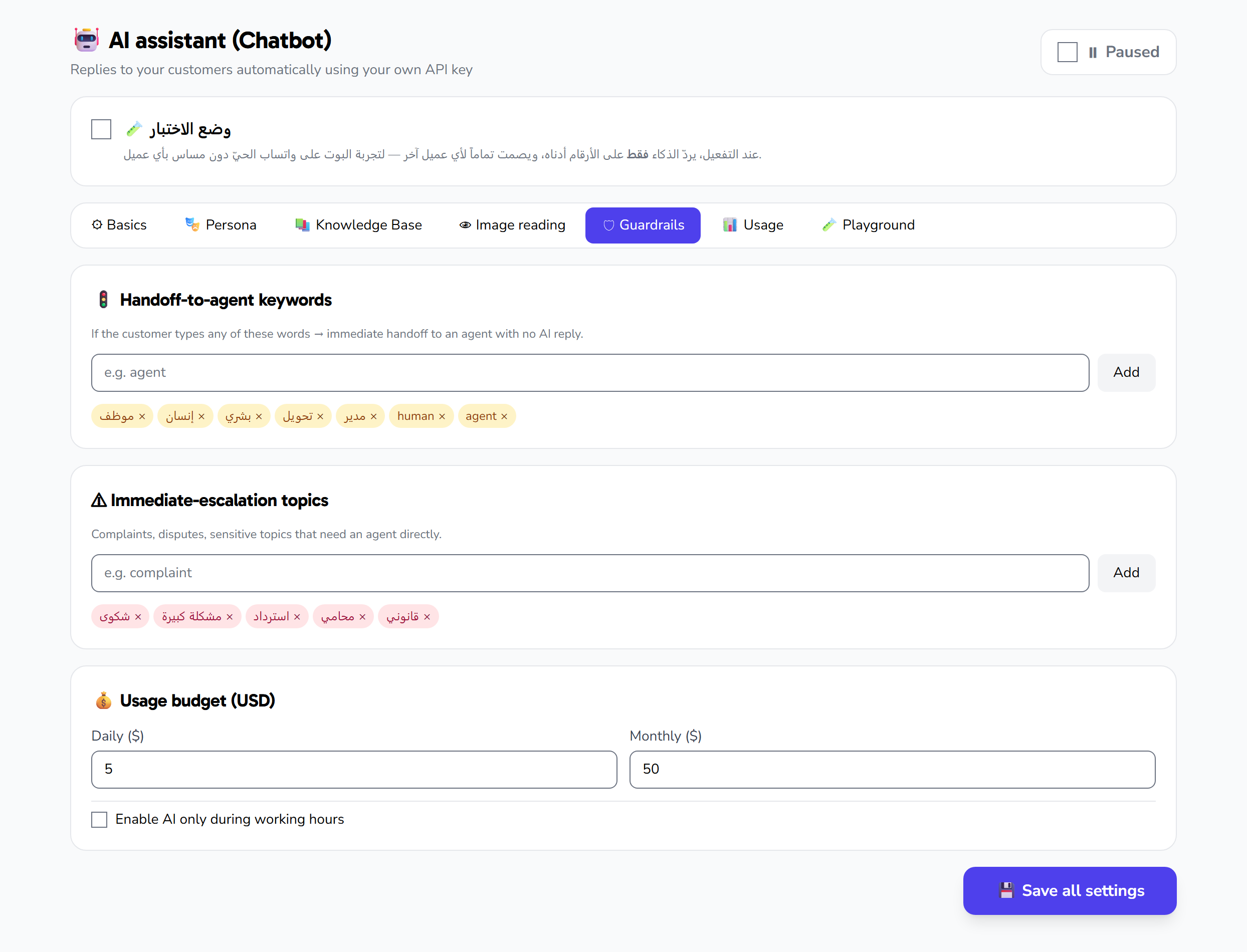
However good the assistant is, some conversations should be handled by a person: a sensitive complaint, a complex request, or an upset customer. The system provides three layers for a safe handoff, configured in the Guardrails tab.
1. Handoff keywords
Words that, if the customer types them, immediately transfer the conversation to an agent. Add words like "agent," "talk to a person," or "complaint." Type the word and click add to see it appear as a removable tag.
2. Escalation triggers
Sensitive words or situations that make the assistant escalate automatically instead of trying to answer (for example: "cancel subscription," "legal," "refund").
3. The assistant escalating on its own
The ready-made instructions include an explicit rule: if a question falls outside the company's scope, or the problem isn't resolved after two or three replies, the assistant calls the human-handoff tool instead of inventing a solution. You can reinforce this behavior in the instruction text in the Persona tab.
Tips
- Start with read tools only in the first week, then add write tools gradually.
- Test each write tool in the Playground before enabling it for customers.
- Add handoff keywords in the dialect your customers actually use, not formal language alone.
- Review the assistant's conversations during the first days to make sure it hands off at the right time.