 Fynchat
Booking App: Take Your Customers' Appointments over WhatsApp
A complete guide to the Booking app — setup, services with durations and prices, branches and staff, and every setting on the page (General, Working hours, Booking rules, Saudi market features, Integration variables, public link), reminders, how customers book over WhatsApp, and the calendar.
What is the Booking app?
The Booking app 📅 turns WhatsApp into a full booking channel for your business. Your customer picks a service and a convenient time from your link or from an interactive form inside WhatsApp, then receives an instant confirmation and automatic reminders before the appointment — with no calls and no manual coordination.
It suits any appointment-based business: clinics, salons, training centers, consultancies, workshops, and more.
Key highlights:
- Manage multiple services, each with its own duration and price.
- A visual calendar that gathers all your appointments in one place.
- A public booking page with your own link to share with customers.
- Integration with interactive forms (WhatsApp Flows) and the inbox.
- Automatic reminders before the appointment.
- Cancel and reschedule by the customer themselves.
The app is available for a monthly subscription of 49 SAR, with a 7-day free trial.
Setup
1. Install the app
Go to the Booking page and enable the app from the app store. The free trial starts automatically.
2. Add your services
Define the services customers book (such as "Consultation," "Haircut," or "Checkup"), along with each service's duration and price. Details are in the next section.
3. Add staff and branches (optional)
If you have more than one staff member or branch, add them and link each service to who provides it and where.
4. Share your booking link
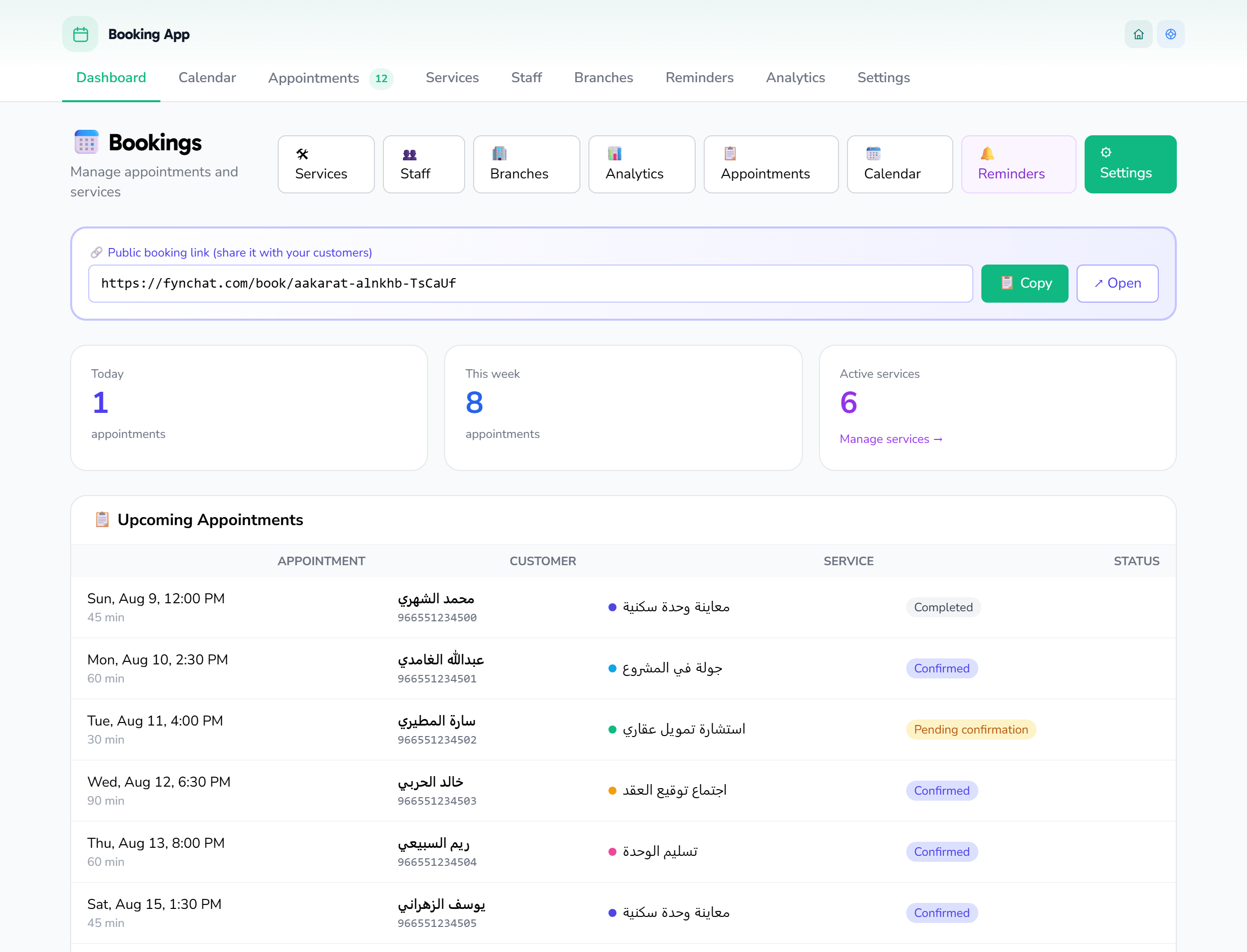
Copy the public booking page link and share it with your customers, or connect it to auto-replies using the keyword "book."
5. Try booking yourself
Open the link and make a test appointment; you'll see it immediately in the calendar, and the confirmation will arrive over WhatsApp.
Services, durations, and prices
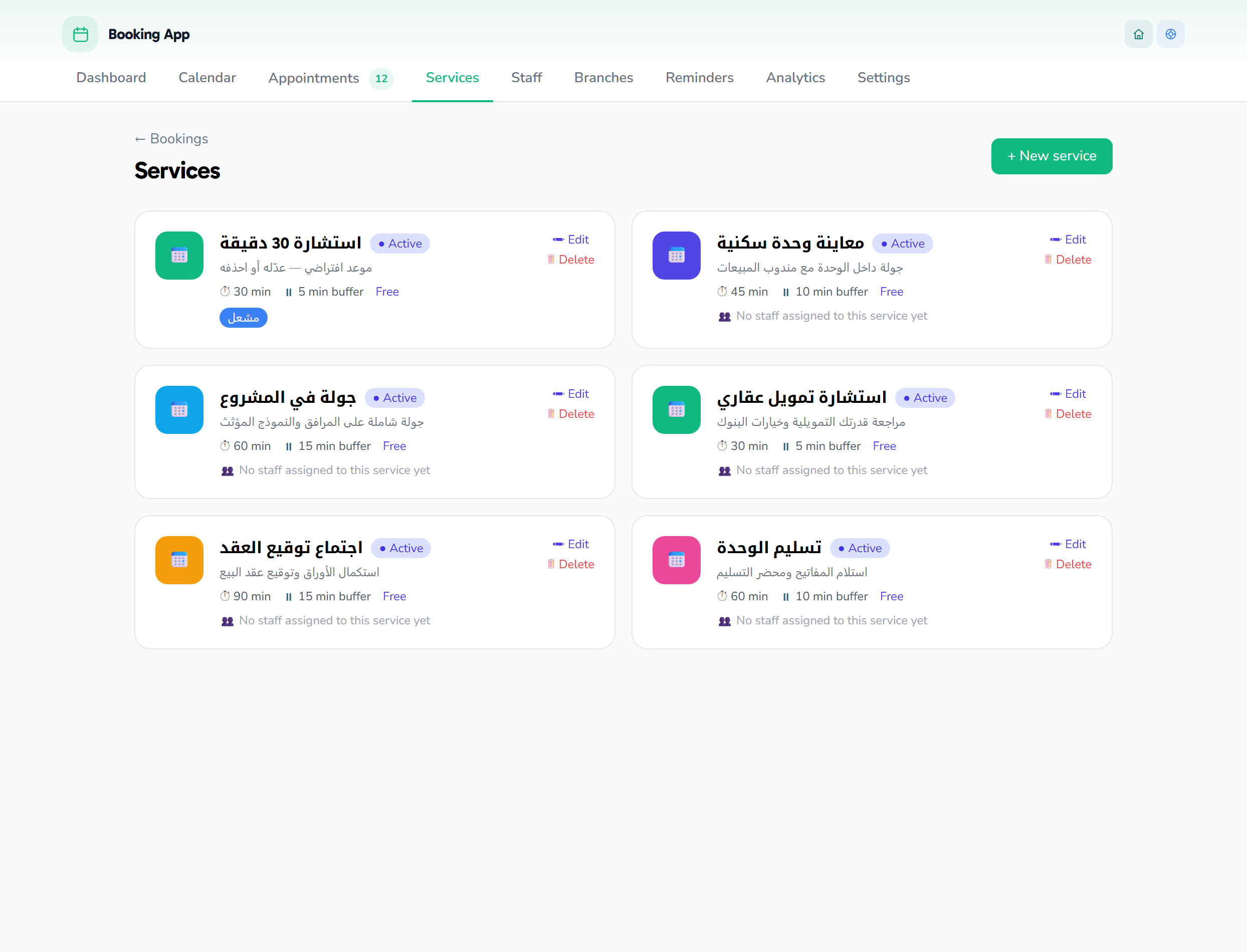
Inside the app, open the Services page, then click + New service. For each service you set:
| Field | Description |
|---|---|
| Name | The service name as the customer sees it (e.g., "Consultation session") |
| Description | Optional short explanation |
| Duration (minutes) | Appointment length, from 5 to 480 minutes |
| Buffer (minutes) | Rest or preparation time after the appointment, from 0 to 120 minutes |
| Price | The service price; leave it at 0 to show "Free" |
| Color | A distinguishing color for the service in the calendar |
| Staff | Who provides this service (optional) |
| Branches | Where it is offered (optional) |
| Active | Enable the service or take it off booking |
Practical tips:
- Duration determines the appointment length in the calendar and how many slots are available per day.
- Buffer prevents back-to-back appointments and gives you time between one customer and the next.
- You can pause a service temporarily without deleting it by clicking its status badge.
- Prices are in Saudi Riyals (SAR).
Branches and staff
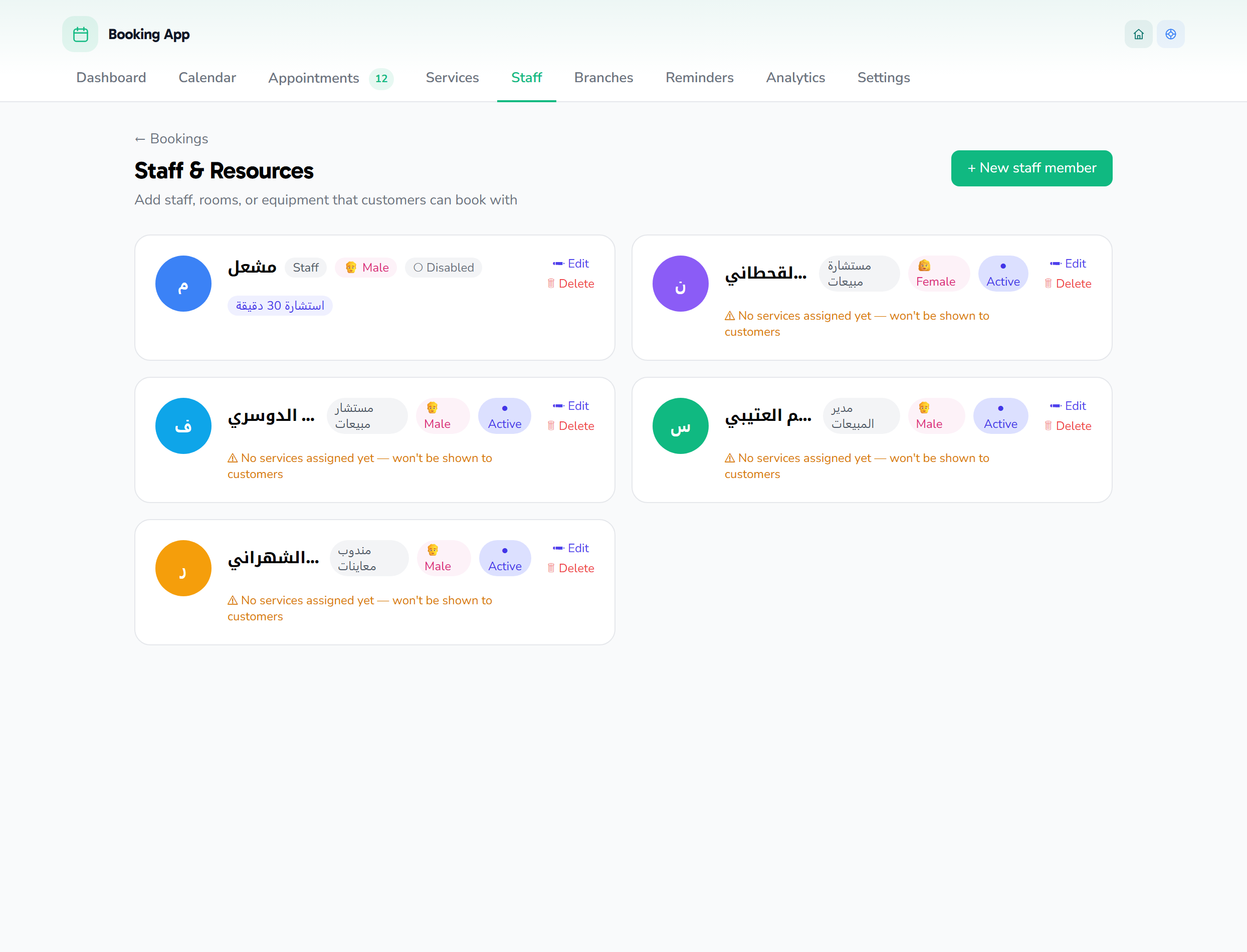
If your business runs with several staff members or branches, the app distributes bookings across them:
- Staff: Add your team from the Staff page and give each member a distinct color. When creating a service, choose the staff who provide it. A service that isn't assigned to anyone is available to everyone.
- Branches: If you have more than one branch, link each service to the branches where it is offered, so the customer books at the branch nearest to them.
This linking ensures the customer only sees what is actually available: the right service, with the right staff member, at the right branch.
The booking settings page
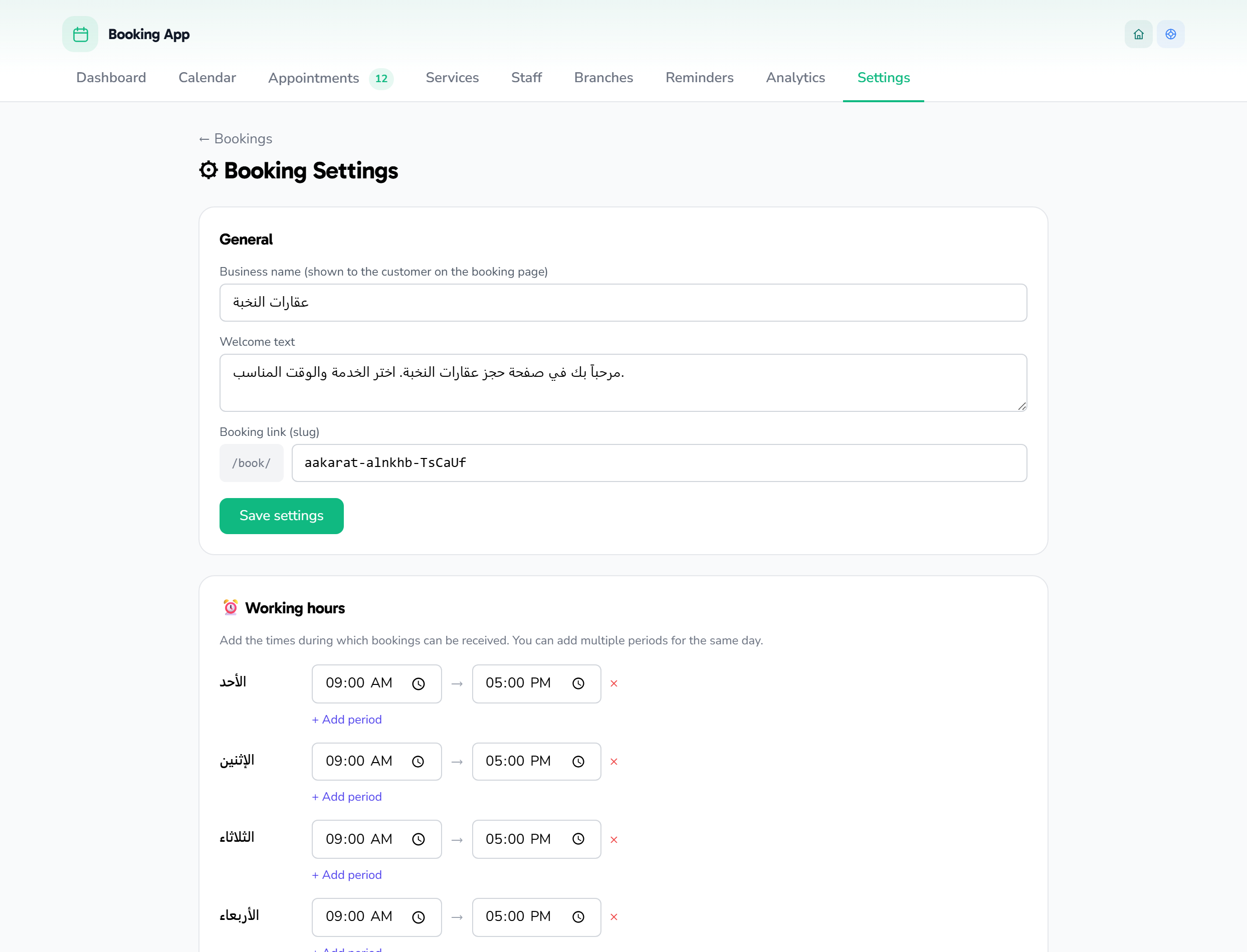
All of the app's settings are gathered on one page: Booking settings. The page is split into cards, and each card has its own save button — save each card after editing it. A "Saved ✓" message appears on a successful save.
General
| Field | Description |
|---|---|
| Business name | The name the customer sees on the booking page. |
| Welcome text | A short introductory text shown at the top of the booking page. |
| Booking link (slug) | The last part of your public link after /book/ (e.g., /book/my-clinic). |
Click Save settings to store this card.
⏰ Working hours
Add the times during which you accept bookings. You can add multiple periods for the same day (for example a morning period and an evening one):
- For each day of the week, click + Add period, then set the start time → end time.
- To delete a period, click the × next to it.
- Click Save hours to store the schedule.
Linked to company working hours: If your booking hours are linked to the company's working hours, the times are taken automatically from Company profile → Working hours, and no edit here takes effect while the link is on (the card appears disabled). To edit the times from this page, turn off the link in the company profile first.
📐 Booking rules
This card controls which times the customer can choose:
| Setting | Description |
|---|---|
| Allow same-day booking | When off, the customer can only book from tomorrow onward, even if today's slots are available. |
| ⏱ Minimum lead time | How many minutes before the appointment booking is allowed; pick a preset button or enter the value manually in minutes. |
| 📆 Furthest bookable date | How many days into the future the customer can book (from 1 to 365 days); preset buttons or manual entry. |
| ⏲ Slot precision | The time gap between each available slot and the next: every 5, 10, 15, or 30 minutes, or every hour. |
| Allow the customer to cancel their own appointment | When on, an "at least … hours before the appointment" field appears to set the window within which cancellation is allowed (from 0 to 168 hours). |
| Reminder 24 hours before | Turn the automatic reminder one day before the appointment on/off. |
| Reminder 1 hour before | Turn the automatic reminder one hour before the appointment on/off. |
| Post bookings to the inbox | When on, new bookings appear as messages inside the inbox. |
Click Save rules after editing.
🇸🇦 Saudi market features
| Setting | Description |
|---|---|
| Show the Hijri date alongside the Gregorian | Display the Hijri date next to the Gregorian one on the booking page. |
| 🕌 Avoid booking during prayer times | Automatically hides slots during prayers. When on, you set the City (Riyadh, Jeddah, Mecca, Medina, Dammam, Khobar, Abha, Tabuk) and the blackout minutes around each prayer (from 5 to 120 minutes). |
| 🌙 Special working hours during Ramadan | Alternative hours (from → to) that replace the regular working hours throughout Ramadan. |
| 🇸🇦 Auto-close on official holidays | Automatically close booking on: Founding Day, National Day, Eid al-Fitr, Arafah and Eid al-Adha. |
| ⚧ Let the customer choose the staff member's gender | Lets the customer choose a male or female staff member (useful for spas, health, and beauty); each staff member's gender must be set on the staff page. |
| 🏢 Enable multi-branch mode | When on, the customer chooses the branch first before the service on the booking page; connects to the Manage branches page. |
Click Save Saudi settings after editing.
🔗 Integration variables
Ready-made variables to insert into auto-replies, interactive forms, or campaign messages — they are automatically replaced with the actual values when sent. Click the 📋 Copy button next to any variable to copy it, for example:
{{booking.url}}— the link to your booking page.{{booking.next_available}}— the nearest available appointment.
🔗 Your public booking link
At the bottom of the page, your public booking link appears ready to share. Use the 📋 button to copy the link, or the ↗ button to open it in a new window and preview it as the customer sees it.
Reminders
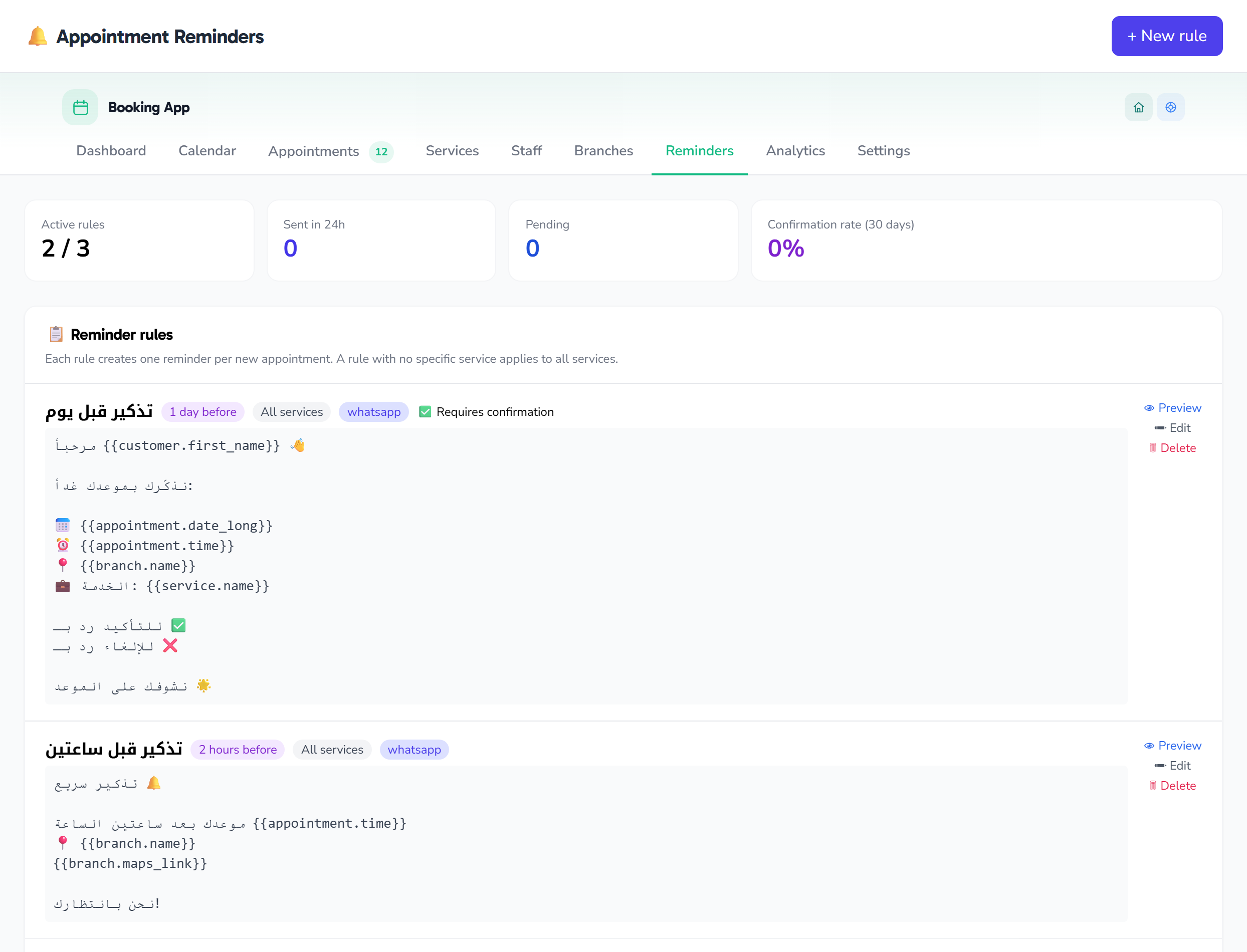
The app sends automatic reminders over WhatsApp to reduce no-shows, and you can turn each reminder on or off from the Booking rules card in the settings:
| Reminder | Timing |
|---|---|
| Early reminder | 24 hours before the appointment |
| Final reminder | 1 hour before the appointment |
The customer also receives an instant confirmation the moment the booking is completed. To customize your messages, ready-made variables can be inserted into templates and auto-replies:
{{booking.url}}— the link to your booking page.{{booking.next_available}}— the nearest available appointment.
How customers book over WhatsApp
Your customer has more than one way to book, and each one ends with the appointment appearing in your calendar:
- Direct booking link: Share your public page link; the customer picks a service and time, then confirms.
- Keyword in auto-replies: Set up an auto-reply so that when the customer types "book," they instantly receive the booking link. You can also hand out the link through the AI assistant.
- Interactive form (Flow): The customer books from inside WhatsApp through an interactive screen (date + time + service) without leaving the conversation.
After booking:
- The customer receives an instant confirmation.
- They receive reminders before the appointment.
- The customer can cancel or reschedule on their own, and this is reflected automatically in your calendar.
The calendar
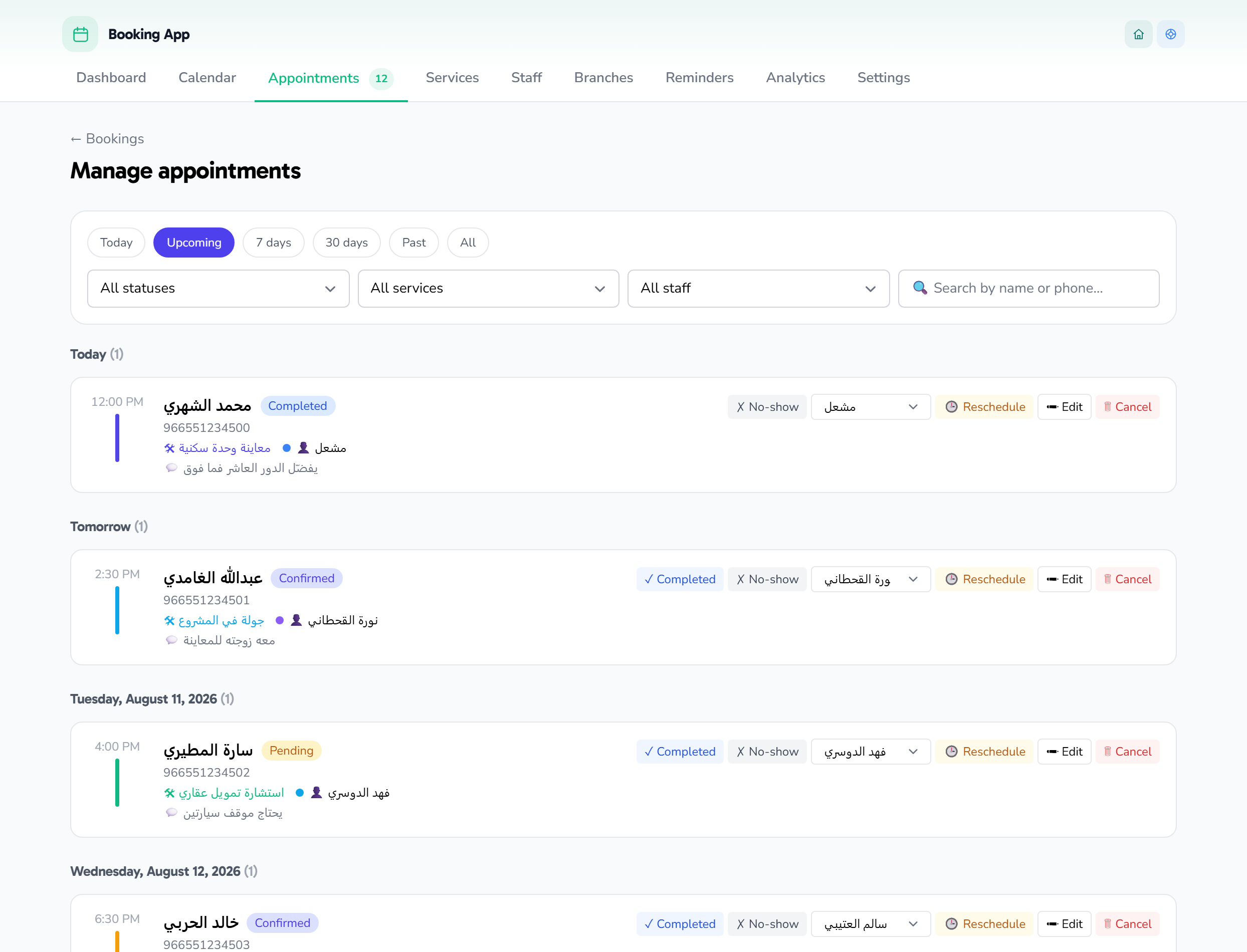
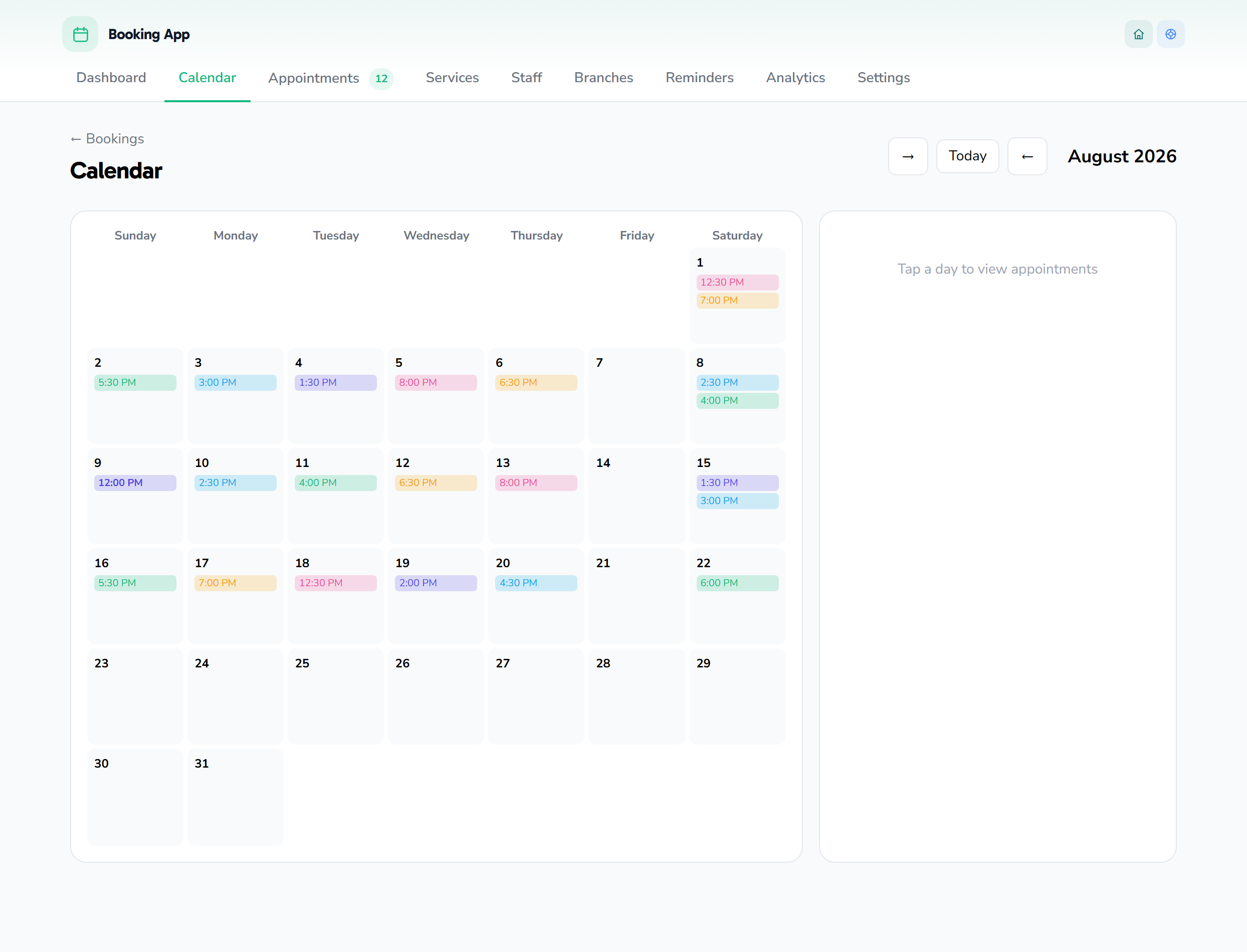
The visual calendar gathers all your appointments into one clear view inside the Booking page. Each appointment shows in its service's color, so you can read your day at a glance. From the calendar you follow upcoming appointments, see how busy each staff member or branch is, and avoid conflicts before they happen.