 Fynchat
Real Estate App
A complete guide to the Real Estate app — add listings with photos and location, capture interested leads, schedule viewings, configure the public page and lead handling, and engage customers over WhatsApp.
What is the Real Estate app?
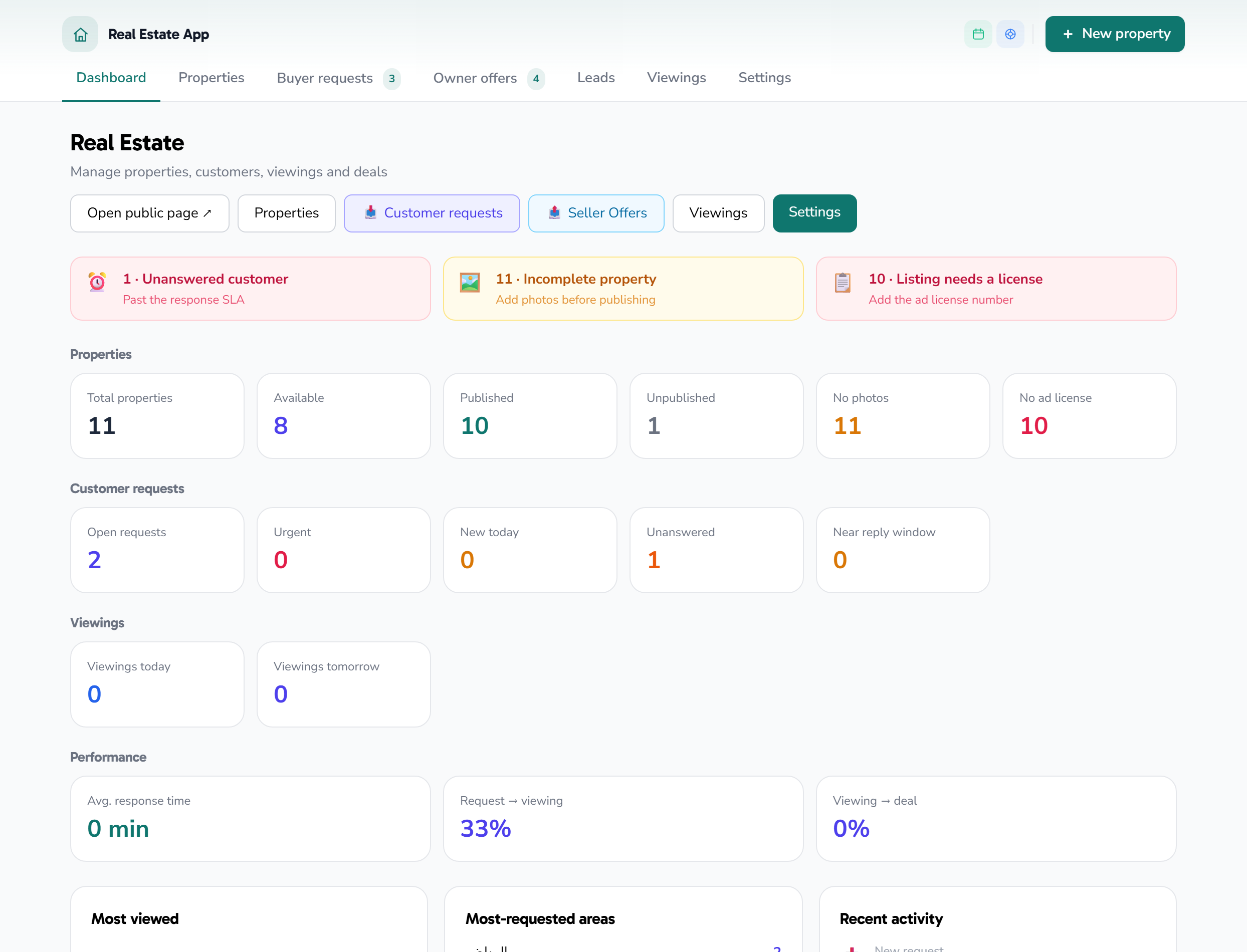
The Real Estate app is a property system built into WhatsApp that brings listings, interested leads, and viewing appointments together in a single dashboard. In short, it helps you:
- Manage listings for sale or rent with photos, price, and location.
- Publish a public listings page you can share with customers via a single link.
- Capture interested leads and link each one to the right property.
- Manage viewing appointments and track their status.
- Send property details through ready-made WhatsApp templates for follow-up and viewing confirmation.
- Track a dashboard of properties, leads, and upcoming viewings.
The app suits real estate offices and brokers who handle inquiries over WhatsApp. It comes with a 7-day free trial, then a monthly subscription of SAR 99. You can enable it from the app page: /apps/real-estate.
Adding properties
On the Properties page, click + New property to open the form. Fill in the following fields:
- Title — a clear name for the unit (e.g. "3-bedroom apartment — Al-Yasmin district").
- Listing type — for sale or for rent.
- Property type — apartment, villa, land, office, or building.
- Status — draft, available, reserved, sold, or rented.
- Reference code (optional) — an internal code that makes the unit easy to find.
- City, district, and detailed address.
- Location on the map — click "Pick on map" and set the point; this sets the latitude and longitude and powers the public map and directions for the customer.
- Price and currency (SAR, AED, or USD).
- Area in square meters, plus the number of bedrooms, bathrooms, and parking slots.
- Description — a concise marketing summary.
- Amenities (optional) — write each amenity on its own line (e.g. elevator, central A/C, pool).
- Contact number for this specific property (optional).
Images
You can upload up to 10 images per property. Drag and drop them into the upload zone, or click to select them.
| Limit | Details |
|---|---|
| Maximum count | 10 images |
| Maximum size per image | 5 MB |
| Supported formats | JPG, PNG, WebP |
- The first image is the cover (it shows a gold badge). To make another image the cover, hover over it and click ⭐.
- You can reorder by drag and drop, and remove any image with the × button.
Publishing and the public page
- Turn on the Published option to show the property on the public page, or turn it off to hide it (draft/hidden).
- The Featured option highlights a property among the others.
- After saving, each property has a public link you can open from the "View" button on its card and share directly with the customer.
Use the search and filters bar above the list to filter by text, listing type, or status.
Import and export
- Export: download all your properties in a single file from the "Export" button.
- Import: click "Import", then download the ready template (Excel), fill it in, and upload it. The first row holds the column headers, and Excel or CSV files are supported. After uploading, the system shows how many were added, how many were skipped (duplicates), and any errors.
Leads and interested customers
When someone inquires about a unit, register them as an interested lead and link them to the right property. This gives you an organized record instead of scattered messages, and makes follow-up easier later.
For each lead you can:
- Link them to the property they inquired about.
- Record contact details and important notes.
- Track their status until the deal closes or a viewing is scheduled.
A summary of leads appears on the dashboard, so you can quickly see how much demand each unit is getting.
Viewings
Once a customer is interested, set a viewing appointment linked to the property and the lead, and track its status until the visit is complete. The dashboard shows upcoming viewings so you never miss an appointment.
A recommended workflow:
- Agree on a date and time with the customer.
- Record the appointment and link it to the property and the interested lead.
- Send the customer a viewing confirmation through the ready-made WhatsApp template.
- Update the viewing status after the visit (completed, cancelled, or rescheduled).
App settings
Open Real Estate Settings from the app page. These settings control how your public page looks and how leads are handled. The Open public page button at the top shows your page as the customer sees it. After any change, click Save settings, and a "Saved." confirmation appears.
Public page identity
| Field | Description |
|---|---|
| Business name | Your office or company name as it appears at the top of the public page. |
| Page URL | The custom part of your public page address after /real-estate/ (e.g. /real-estate/al-yasmin). Pick a short, shareable word. |
| Default city | The city suggested automatically when you add a new property, to save typing. |
| Currency | The default currency for displaying prices: SAR, AED, or USD. |
| Cover color | The color of the public page header/cover, chosen from a color picker to match your brand (defaults to teal). |
| Logo | Your business logo on the public page. Click ⬆️ Upload logo to upload an image, or paste the logo URL into the field, and use Remove to clear it. |
| Introduction text on the public page | A short introductory paragraph shown at the top of your public page (a blurb about your office or a welcome message). |
Lead handling
| Field | Description |
|---|---|
| Notify the real estate manager when a new lead arrives | A checkbox toggle that sends the manager an alert as soon as a new interested lead is registered. |
| Manager phone number | The WhatsApp number that receives the alert when the option above is enabled. |
| Lead assignment | How new leads are assigned: Manual (you assign them yourself) or Automatic round-robin (distributed across team members in turn). |
Current public link
This section shows the Current public link to your shareable page; copy and share it with customers, or open it to preview. This link changes according to the Page URL value above.
How the customer interacts over WhatsApp
The app is designed so the customer's journey happens entirely inside WhatsApp:
- Share the property link: send the unit's public link, and the customer sees the photos, price, and the location on the map with directions.
- Ready-made templates: use the included WhatsApp templates to send property details, follow up, and confirm viewings.
- Ready template variables: the property's data is inserted automatically into the template through variables such as:
| Variable | What it inserts |
|---|---|
{{real_estate.property_url}} |
The public property page link |
{{real_estate.property_price}} |
The property price |
This way the customer receives a formatted message with the unit's link and price without any manual typing, and taps the link to see all the details.
Tip: to cover initial inquiries outside working hours, enable the AI chatbot from /settings/ai-chatbot so it replies to customers automatically while your team follows up.
Tips
- Clear photos first: a strong cover raises engagement; put your best photos at the front.
- Always set the location on the map to enable directions and make the unit easy to reach.
- Update the status immediately (reserved/sold/rented) so you don't send out a unit that isn't available.
- Link every lead to its property to keep your follow-up record tidy.
- Use the reference code to find any unit quickly via search.
- Complete your public page settings (name, logo, cover color, and introduction text) so it looks professional to customers.
- Enable the manager alert and set the manager's phone number so no new lead slips through.