 Fynchat
The "Store & Orders" App
A full online store and an orders board, both built into WhatsApp — setup, products and categories, and end-to-end order management.
Overview
The Store & Orders app combines two surfaces in a single app:
- An online store with an elegant public page, a cart and checkout, and tax and shipping calculation — it takes orders straight from your customers.
- An orders board with statuses, columns, and pipelines, to manage every order from the moment it arrives until it's delivered, with instant WhatsApp confirmation.
Every order — whether it comes from the public store, the inbox, or the AI assistant — shows up on the same board so your team manages it all in one place.
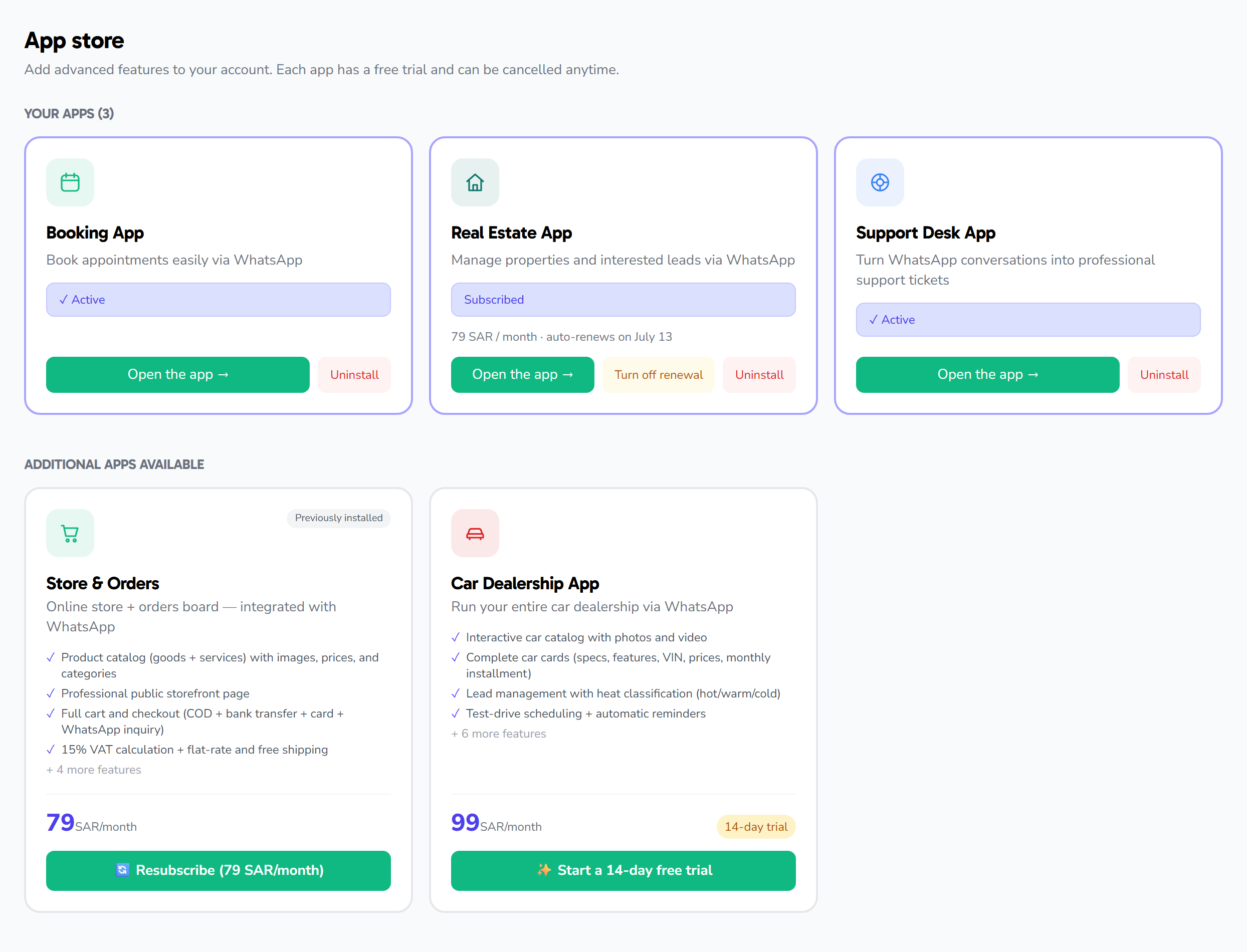
To get started, install the app from the Apps Gallery (it begins with a free trial), then open it from the Store & Orders link in the sidebar.
Tabs
The app splits its work into tabs at the top, shown according to your permissions:
- Today — a quick view of today's orders and urgent actions.
- Catalog — products and categories (goods and services).
- Board — order columns by stage, with drag and drop.
- All orders — a full, searchable, filterable table.
- Settings — store settings (link, identity, shipping, tax, payment, Meta connection, and order rules) and orders-board settings (menu, fields, stages, routing, and CSAT).
Step one: set up the store
Start by setting your store identity, payment, and shipping methods in Settings (see the "Settings" section below), then add your products and categories from the Catalog, and finally share your public store link with customers.
Catalog: products and categories
Adding a product
From the Catalog tab, choose add good or add service, then fill in:
- Name and description, plus images (upload a file or add a URL).
- Price and currency, and a compare-at price (optional) to show a discount.
- The category the product belongs to.
- For goods: stock tracking and available quantity when needed.
- For services: duration in minutes and the pricing type (fixed price or per task).
- Active and featured options to highlight the product on the public page.
Use the search bar and filters (category, goods/services) to manage a large catalog easily, and toggle any product's active state with one click to show or hide it from customers.
Categories
Add categories from the category bar at the top of the catalog: pick an icon, type the name, and click add. Each category shows its product count, and you can delete it anytime.
The public store page and checkout
The app provides a public store page with a link you share with customers. It displays your products in a professional Arabic design and offers a cart and checkout.
Checkout supports several methods, and you choose which ones to enable in settings: cash on delivery, bank transfer, and WhatsApp inquiry. Shipping and tax are also calculated automatically according to your settings.
When an order arrives, an instant WhatsApp confirmation is sent to the customer, you receive a new-order notification (if enabled), and stock is updated automatically.
Managing orders
Today
Shows today's counter cards (new, processing, completed, canceled, overdue, unread conversations), a list of the latest unaccepted orders with a quick accept button, an overdue list, plus quick-access buttons to the inbox, the board, and all orders.
Board
Columns represent order stages. Drag any card from one column to another to change its stage instantly — the change saves automatically, and if it fails the order returns to its place with an alert.
All orders
A paginated table of every order with search and filters: status, scope (open/closed/overdue), and source (public store, inbox, automated reply, AI assistant, manual). There's a quick button to show only overdue orders.
Order detail and actions
Open any order to see its full card, from which you can:
- Accept the order (first to accept takes it).
- Assign it to another agent or clear the assignment.
- Advance it to the next stage, or cancel it.
- Edit the order items (quantity, note, add or remove an item) while the order is still in its first stage.
- Add an internal note for the team.
- Review the event log and the linked conversation (read-only, with a link to open it in the inbox).
Settings
The app's settings fall into two groups: store settings (store identity, payment, shipping) and orders-board settings (order workflow). After any change in the store settings, click the Save button belonging to each section.
Store settings
Public store link
At the top of the settings page is your public store link (read-only), with a copy button (📋) and an open in new tab button (↗).
General
- Business name — the name shown to your customers at the top of the store page.
- Intro text — a short description shown at the top of the public page.
- Logo URL — a URL to your store's logo image.
- Cover color — a color picker for the public page's background/cover.
- Store URL (slug) — the part that comes after
/shop/in your store link; you choose it yourself. - Currency — choose from: Saudi Riyal (SAR), UAE Dirham (AED), US Dollar (USD).
Shipping
- Enable shipping/delivery — a switch to turn on the delivery option at checkout.
- Enable store pickup — a switch to let the customer choose pickup instead of delivery.
- When shipping is enabled, these appear:
- Flat shipping fee — a uniform shipping charge added to every order.
- Free shipping above — the amount above which shipping becomes free (leave empty to disable).
Tax
- Tax rate (%) — a number between 0 and 100 (e.g. 15).
- Price includes tax — a switch: when on, tax is included in the displayed price; when off, it's added on top.
Payment
- Cash on delivery — a switch to enable this method.
- Bank transfer — a switch to enable this method.
- WhatsApp inquiry — a switch to let the customer complete the order through a WhatsApp conversation.
- Bank account details — appears when bank transfer is enabled; enter the IBAN and account details shown to the customer.
- Cash-on-delivery note — appears when cash on delivery is enabled; a text shown to the customer explaining the cash-payment details.
Meta catalog connection
This section appears when the feature is enabled for your account. Connect your Meta/WhatsApp catalog to your store in one of three ways:
- One-click connect via Facebook — a button that opens Facebook login and discovers the available catalogs and businesses, then lets you pick the catalog from a popup (showing each catalog's name, business, and product count, or direct links to Commerce Manager if no catalog exists).
- Enter a Meta Catalog ID manually — enter the catalog ID and click Connect.
- Connect via a System User Access Token — enter the Catalog API Token and Catalog ID, then click the button to connect and sync in one go (requires the
catalog_managementpermission).
After connecting, you'll see: the connected catalog ID, the last sync time, and Sync now and Disconnect buttons, along with a sync summary (number created/updated/deleted and any errors).
Order rules and notifications
- Minimum order total — the smallest amount an order is accepted at (leave at zero to disable).
- Notify owner on new order — a switch to send you a notification for every new order.
- Owner notification WhatsApp number — appears when notification is enabled; the number that receives the new-order alert.
Orders-board settings
Configured through five tabs:
Menu (products)
The orders-board product list. Each product has three fields: name, price, category, with Save and Delete buttons. Below the list is a row to add a new product (name, price, and category, then Add).
Fields (custom order fields)
Extra fields you collect with each order. Each field has:
- Label — the field name as displayed.
- Type — text, textarea, number, phone, email, date, yes/no (boolean), or location.
- Show in card — a switch to display the field's value on the order card on the board.
- Required — a switch to make filling the field mandatory.
Each field has Save and Delete buttons, plus a row to add a new field.
Stages
The order workflow stages (board columns). Each stage has:
- Color — a color picker for the column/badge.
- Name — the stage name.
- Final stage — a switch marking the order as finished once it reaches this stage.
- Reorder — ▲▼ arrows to move the stage up/down.
Each stage has Save and Delete buttons, plus a row to add a new stage (color, name, and a "final stage" switch).
Routing (auto-assignment per stage)
For each stage you decide what happens to the assignment when an order reaches it, via the assignment type dropdown:
- Keep current assignee — the assignment doesn't change.
- Unassign — the order is left with no assignee.
- By strategy — reveals: role (agent / admin) and strategy (least busy, round-robin, or sticky "stays with the same agent").
- Specific agent — pick the agent the order is assigned to.
- Group of agents — pick several agents (click to toggle each), with a ring mode (all; a "sequential" option that is currently disabled) and a ring timeout in seconds (10 to 300).
Each stage has its own Save button.
CSAT (satisfaction rating)
A satisfaction survey sent to the customer after the order is completed:
- Enable CSAT — a switch to turn the feature on.
- Triggering stage — chosen from the final stages.
- Send delay (minutes) — the delay before the message is sent (from 0 to 10080 minutes, i.e. up to 7 days).
- Rating message text — the message body, supporting the
{order_number}and{customer_name}variables for automatic filling.
With a Save button.
Tips
- Start by setting your store identity (name, logo, currency), then payment and shipping methods, before sharing your store link.
- Set shipping, tax, and payment methods once in settings for a smooth checkout experience.
- Design your stages and each stage's assignment type early so orders flow to the right agent automatically.
- Enable owner notification and enter a WhatsApp number so new orders reach you instantly.
- To let the AI assistant create orders on your behalf, configure its behavior from AI Assistant settings.