 Fynchat
Support App
Turn any conversation into a ticket in one click, organize your team around categories, priorities, and statuses, and track SLAs with automatic customer notifications and a satisfaction rating (CSAT) after every resolution — the AI can even open tickets for you.
What is the Support App?
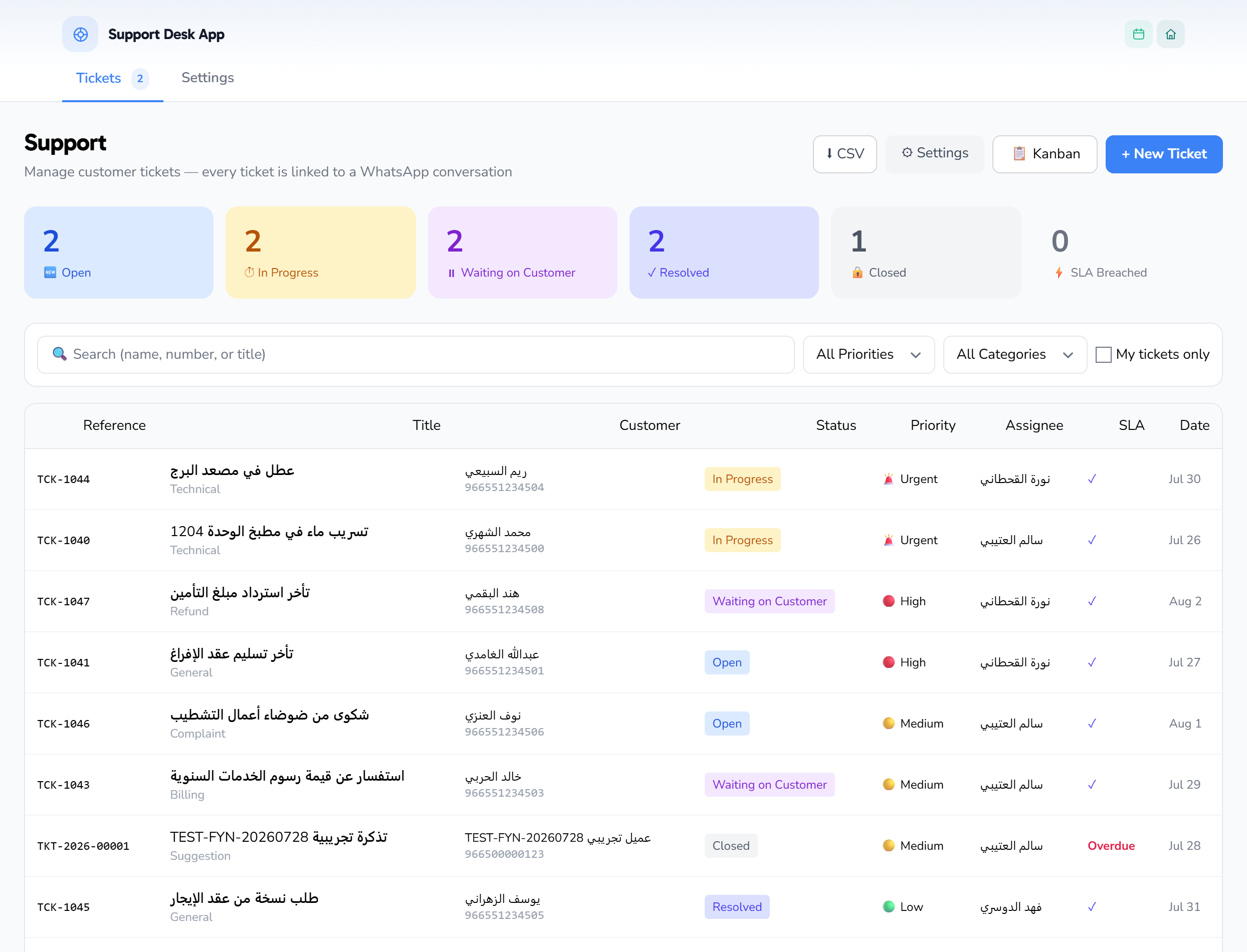
The Support App (🎫) is a full helpdesk built around WhatsApp. Instead of losing customer requests across dozens of chats, it turns them into structured tickets: each ticket has a reference number, a category, a priority, a status, an assigned agent, and a service-level agreement (SLA) — all linked directly to the customer's original WhatsApp conversation.
In short, the app gives you:
- Open a ticket from any conversation in one click from the Inbox.
- SLA tracking with a visual alert when a deadline is missed.
- Agent assignment plus internal notes reserved for your team.
- Automatic customer notifications over WhatsApp whenever the status changes.
- Satisfaction rating (CSAT) requested from the customer after resolution.
You can enable the app from its page: /apps/support-tickets. It comes with a 14-day free trial (20 SAR per month afterward).
Turning a conversation into a ticket
The primary way to open a ticket is directly from inside the customer's conversation, so the ticket stays linked to the contact and the original chat.
When you open a ticket, you fill in these fields:
- Customer — filled in automatically from the conversation (contact and WhatsApp number).
- Title — a short description of the issue or request (required).
- Description — additional details (optional).
- Category — defaults to "General" and can be changed.
- Priority — starts from the default priority set in Settings, and can be changed.
- Assigned agent — starts from the default assignee set in Settings (or unassigned), and can be changed.
As soon as you save, the ticket automatically receives a unique reference number, appears in the list and on the Kanban board, and the SLA clock starts counting.
Note: Tickets opened from the Inbox or by the chatbot are linked to the conversation directly. Tickets opened from the "Requests" screen are also linked to their corresponding central request.
Categories and priorities
Categories help you route a ticket to the right team and sort tickets later:
| Category | Use for |
|---|---|
billing |
Billing and payments |
technical |
A technical problem |
refund |
A refund request |
complaint |
A complaint |
general |
A general inquiry (default) |
suggestion |
A suggestion or improvement idea |
Priorities set the order of handling and show a color cue:
| Priority | Cue |
|---|---|
urgent |
🚨 |
high |
🔴 |
medium |
🟡 |
low |
🟢 |
You can set the default priority that every new ticket starts with from the app settings (/apps/support-tickets/settings), and you can filter the list by category and priority.
The ticket lifecycle: five statuses
Every ticket moves through five clear statuses, which you see as columns on the Kanban board:
| Status | Meaning |
|---|---|
🆕 open |
Just opened; work hasn't started yet |
⏱ in_progress |
An agent is working on it now |
⏸ waiting_customer |
On hold, waiting for a reply or information from the customer |
✓ resolved |
The issue is handled, awaiting final close |
🔒 closed |
The ticket is permanently closed |
For counting and reporting:
- The
open,in_progress, andwaiting_customerstatuses count as "open" (and feed the open-ticket badge in the sidebar). - The
resolvedandclosedstatuses count as "finished".
You can drag a ticket between columns in the Kanban view, or change its status from the ticket page itself.
Assignment and the default assignee
Every ticket has a single assigned agent. You can assign it manually at creation or later, and filter the list with the "My tickets" option to show only what is assigned to you.
To reduce manual steps, you can set a default assignee in the app settings: every new ticket is assigned to them automatically unless you pick another agent at creation. Leave the option on "— None —" if you prefer to distribute tickets manually. This cuts down on coordination and ensures no ticket is left without an owner.
Replies and internal notes
Inside each ticket there are two kinds of messages:
- Public replies — sent to the customer over WhatsApp directly and shown in their conversation.
- Internal notes — private to the team; the customer never sees them. Use them to document handling steps or coordinate between agents before replying.
This keeps the full ticket history — what was said to the customer and what happened internally — in one place, linked to the original conversation.
SLA: service-level agreement
The app tracks two deadlines for each ticket, both derived from Settings:
- First-response deadline (
sla_response_deadline) — the latest acceptable time for the first reply to the customer, computed from the "First response within (minutes)" setting. It counts as breached if the deadline passes without a first response being recorded. - Resolution deadline (
sla_resolution_deadline) — the latest acceptable time to resolve the ticket, computed from the "Resolution within (hours)" setting. It counts as breached if the deadline passes without the ticket being resolved.
In the list and on the Kanban board, each ticket shows the time remaining for the first response. When the deadline passes, the text switches to "Overdue" in a clear red, while tickets replied to within the deadline are marked with a ✓.
At the top of the page there is a ⚡ counter showing the number of tickets that have breached SLA, so you can handle them first.
Automatic customer notifications
When a ticket's status changes, the customer receives an automatic notification over WhatsApp that keeps them informed with no manual effort from the team — from opening the ticket, to starting work, through to resolution. This cuts down on "Where's my request?" messages and raises customer satisfaction. You can turn each of these notifications on or off from Settings (see "App settings" below).
Customer satisfaction rating (CSAT)
After a ticket is resolved, the app sends the customer a rating request about their experience (if the option is enabled in Settings):
- The customer receives the rating request over WhatsApp (the send time is recorded).
- They rate the service out of 5 stars.
- They can add an optional written note explaining the rating.
These ratings are aggregated into reports that help you measure support quality over time, compare agent performance, and spot which ticket types most affect satisfaction.
App settings
To reach the settings, open /apps/support-tickets/settings — or, from inside the app, click the settings button to land on the "⚙ Support App Settings" page (it has a "← Back to tickets" link at the top). The page is divided into four groups, with a "✓ Save Changes" button at the bottom to save everything you edit. Here is every option exactly as it appears in the interface:
📊 SLA (Response Time)
- First response within (minutes) — the number of minutes allowed for the first reply to the customer before the ticket is considered overdue. Interface hint: "The agent must respond within this time." A number between 1 and 10080 minutes (up to 7 days); it defines the
sla_response_deadline. - Resolution within (hours) — the number of hours allowed to close/resolve the ticket before it is considered breached. A number between 1 and 720 hours (up to 30 days); it defines the
sla_resolution_deadline.
🎯 Default Settings
- Default priority — the priority every new ticket starts with automatically. Options: 🟢 Low, 🟡 Medium, 🔴 High, 🚨 Urgent.
- Default assignee — the agent new tickets are automatically assigned to. The dropdown lists your team members, or choose "— None —" to leave new tickets unassigned.
📞 Customer notifications via WhatsApp
Three checkboxes control the automatic messages sent to the customer:
- Notify the customer when the ticket is opened — when enabled, the customer gets an automatic WhatsApp message as soon as the ticket is created.
- Notify the customer when the ticket status changes — when enabled, the customer gets a message whenever their ticket's status changes (for example, from "In progress" to "Resolved").
- Request a satisfaction rating (CSAT) after resolution — when enabled, a rating request (5 stars) is sent to the customer automatically after the ticket is resolved. Turning it off disables CSAT messages entirely.
🔄 Lifecycle
- Auto-close after (days from resolution) — the number of days a ticket stays in "Resolved" before it automatically turns to "Closed". Interface hint: "Resolved tickets automatically turn to 'Closed' after this period." A number between 1 and 90 days.
After any change, click "✓ Save Changes" to apply it immediately.
Opening a ticket automatically with AI
Opening tickets isn't limited to your human team. The chatbot can open a ticket automatically mid-conversation through an action step (app_action) inside a Bot Flow.
The idea: when a customer reaches a point in the chat that needs a human follow-up — such as a complaint, a refund request, or an issue the bot couldn't resolve — the bot opens a ticket on their behalf, linked to the contact and conversation, with a suitable category and priority, so it appears on the team board immediately. That way no request is lost, even outside working hours.
This step is configured from the chatbot settings: /settings/ai-chatbot.
Views, filters, and export
- List view: a table showing the reference number, title, customer, status, priority, assignee, SLA state, and creation date.
- Kanban view: columns for the five statuses, with a compact card per ticket and a red alert for overdue tickets.
To move quickly across hundreds of tickets, filters are available: text search, and filtering by status, priority, and category, plus a "My tickets" option. You can also export tickets (with the applied filters) to a CSV file in one click.
Quick tips
- Set a default assignee in Settings to save manual coordination and ensure no ticket is left without an owner.
- Watch the ⚡ counter daily and start with the tickets that have breached SLA.
- Set the first-response and resolution deadlines to numbers that are realistic for your team, so overdue alerts stay meaningful.
- Use internal notes instead of side WhatsApp groups, so everything stays documented inside the ticket.
- Enable chatbot-opened tickets to capture requests outside working hours.
- Review CSAT reports weekly to spot opportunities to improve your service.