 Fynchat
Invoices and add-ons
From /billing, track your plan and subscription status, manage payment cards, download your invoices as PDF, and raise or lower your add-ons yourself with a live preview of proration and 15% VAT.
What is the "Invoices and add-ons" page?
The billing area (/billing) is where you manage your subscription and payments in Fynchat. It is split into three linked pages:
- Billing dashboard (/billing) — your current plan, subscription status, next-bill preview, saved cards, active add-ons, and latest invoices.
- Invoices (/billing/invoices) — your full invoice list, where you can open each invoice to view or print it.
- Add-ons (/billing/addons) — a self-serve catalog to raise or lower your resource limits and enable paid apps.
Who can access it? The billing area belongs to your account: any user in your account can view billing information (view only), while actions (adding or removing a card, changing add-ons, changing your plan, cancelling, paying an invoice) are limited to the account owner. Every invoice and card is tied to your account alone — you never see another account's data, and yours is never shown to anyone else.
Billing dashboard
Plan and subscription status
At the top you see your current plan by name, alongside a colored subscription-status badge. The recognized states are: trial 🎁, active, pending, grace, expired, and cancelled — any unrecognized state is shown as-is.
This section also shows:
- Billing cycle — monthly or yearly.
- Current period end (renewal) date — when available, the end of your current period is shown, formatted to your language.
- Cancellation notice — if you have stopped auto-renewal, an amber notice reminds you that service continues until the period-end date.
To upgrade or change your plan, go to the plans page (/billing/plans).
Next-bill preview
A card lists the line items of your upcoming bill (plan and add-ons with their quantities), then the subtotal, VAT (15%), and total — all in SAR. This card appears only when there are line items.
Active add-ons
A summary of your active add-ons, each type with its quantity and monthly price: seats, extra WhatsApp accounts, extra contacts, extra campaigns, extra auto-replies, extra flows, and paid apps (booking, shop, real-estate, car dealership, support tickets). It links to the Add-ons page to manage them.
Recent invoices
A table of your 10 latest invoices showing: number, date, total (SAR), and a colored status (paid = green, failed = red, otherwise gray), with a 📄 PDF link when available and a link to view the invoice. The table header takes you to the full invoice list.
Payment methods (saved cards)
The dashboard lists your saved cards. Each card shows: the brand logo (Visa / Mastercard / mada / Amex, or a generic icon for others), the masked last 4 digits (•••• 1234), a "default" badge on the default card, and the expiry date as MM/YYYY.
Available actions:
- Add card — the button takes you to a secure payment page that runs a 1.00 SAR verification (authorization) only — not an actual charge — to securely save (tokenize) the card for use in future renewals.
- Set as default — shown for non-default cards; makes the chosen card your default payment method.
- Remove card — deletes it after a confirmation prompt.
Always keep a valid default card so your subscription renewal doesn't fail.
Cancelling your subscription (stopping auto-renewal)
A Cancel subscription button is available on the billing dashboard when your subscription is active and not already cancelling. After a confirmation prompt, cancelling stops auto-renewal, but your service continues until your current period-end date — it is not cut off immediately. Until then, an amber notice shows the date on which service will end.
Invoices
The /billing/invoices page lists all your invoices (20 per page). For each invoice the table shows: number, date, first line-item description, total and currency, and a colored status:
| Status | Color |
|---|---|
| paid | green |
| draft | amber |
| failed | red |
| refunded | purple |
| void | gray |
Clicking any row opens the invoice detail (shown as a Tax Invoice document with the VAT and CR numbers, the line items, and totals), where you can:
- Print the invoice — a Print button opens your browser's print dialog. (A link to download the Zoho Books PDF does not appear here; it appears in the "Recent invoices" table on the billing dashboard when available.)
- Pay an unpaid invoice — if the invoice is pending/unpaid, a Pay now button takes you to the secure payment page (if it is already paid, it returns you to the invoice with an "already paid" message). A failed invoice instead shows its failure reason rather than a pay button.
Add-ons (self-serve upgrades)
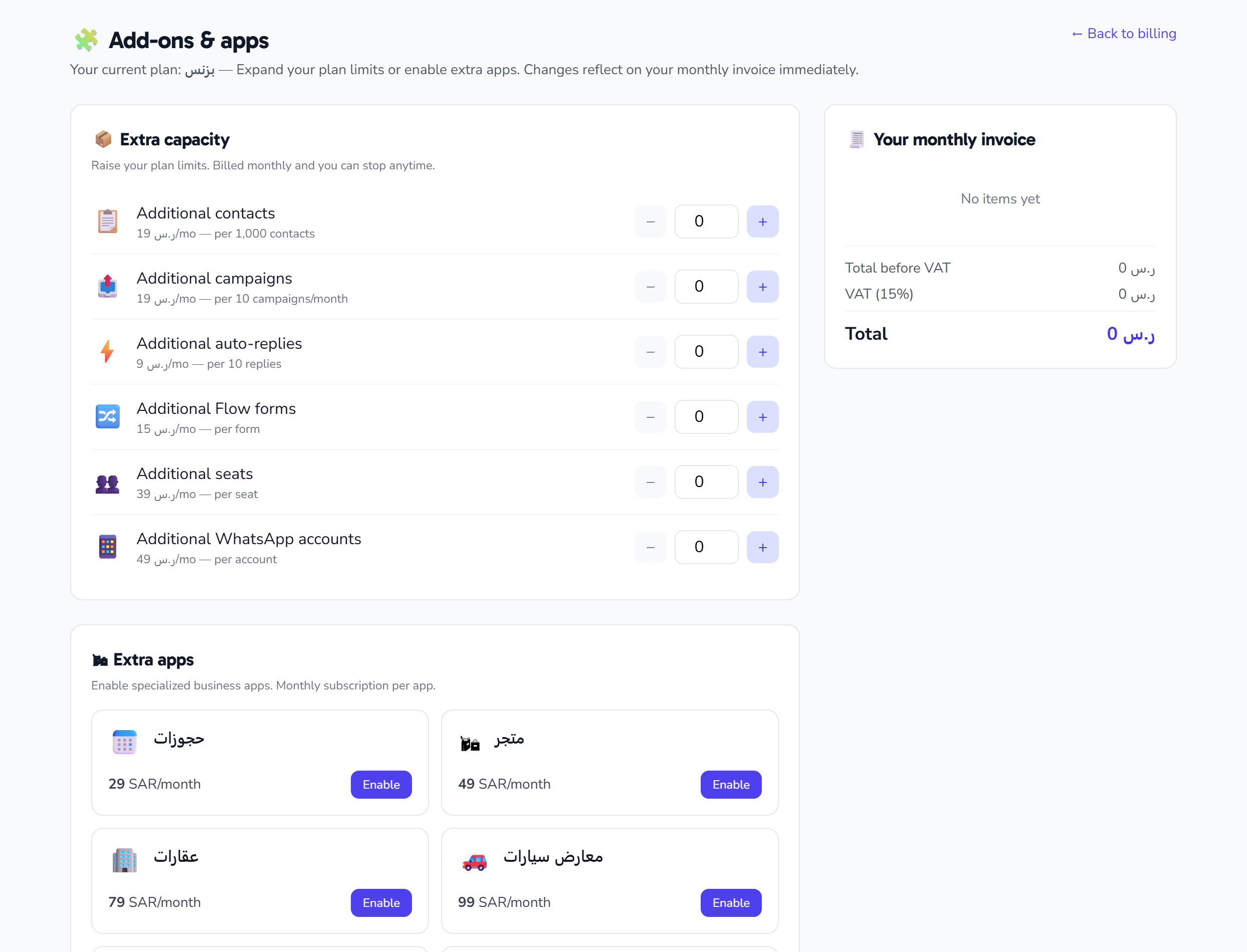
The /billing/addons page lets you raise or lower your resource limits and enable paid apps yourself, with an instant cost calculation before you confirm.
What you see depends on your plan: resource add-ons your plan doesn't price (zero price) are hidden entirely, while paid apps are always listed and may appear as "not available" if your plan doesn't offer them.
Resource add-ons
Each resource has a row with a stepper (− / number field / +) to set the quantity you want (minimum 0). Rows you change are highlighted and feed the preview and the apply step. Prices are in SAR and are built from your plan:
| Add-on | Pricing unit |
|---|---|
| Extra contacts | per 1,000 |
| Extra campaigns | per 10 |
| Extra auto-replies | per 10 |
| Extra flows | per 1 |
| Extra seats (users) | per 1 |
| Extra WhatsApp account | per 1 |
Add-ons your plan doesn't offer (priced at zero) are hidden automatically.
Paid apps
A grid of cards for the paid apps; each card shows an icon, name, and description, then one of: an "included" badge if the app is part of your plan, a "not available" state, or the monthly price. A toggle button enables the app (quantity 1) or cancels it (quantity 0) when it is available and not included. Examples of these apps: booking, shop, real-estate, car dealership, and support tickets.
Live cost preview
On any pending change, the page calculates the cost instantly without saving anything until you confirm:
- Proration: when you raise capacity mid-period, the increase is charged only for the remaining days of your current period, plus 15% VAT. A reduction, by contrast, incurs no immediate charge.
- Monthly delta: how much your recurring monthly bill changes.
- Next-month invoice (side panel): lists the line items of your upcoming monthly bill (description × quantity × unit price) with subtotal, VAT, and total in SAR. It is a snapshot of your current subscription and does not update as you adjust the steppers; the effect of your pending changes shows in the proration and monthly delta in the bottom bar and the review window.
- Pending-changes bar: when there are changes, a bottom bar shows the number of changes, the proration amount (a one-time charge), and the monthly delta, with Reset and Review buttons. Review opens a window itemizing each change (current quantity → new quantity, and the difference) with the proration breakdown (net + VAT = total).
Applying changes and paying
When you confirm:
- If proration is under 0.50 SAR (for example, reductions or a tiny amount) — the changes apply immediately and appear on your next monthly bill.
- Otherwise — a proration invoice is created (net + 15% VAT, in SAR) and you are redirected to the payment page, and the new capacity is granted only after this invoice is paid. That is why the confirm button changes to "Pay" instead of "Confirm" when an amount is due.
Raising any paid resource is never instant; it always goes through this page for proration and payment. Also, each add-on's quantity is capped at a maximum of 1,000.
How payment and invoicing work
- Card payment through a secure payment page that shows the card brand logos (Visa / Mastercard / mada / Amex). Your card is saved securely (tokenized) for automatic renewals.
- The legal invoice is issued by Zoho Books; a link to download it as a PDF appears in the Recent invoices table on the billing dashboard when available. You can also view the invoice as a tax-invoice document and print it from the invoice detail page.
Quick tips
- Keep a valid default card so renewals don't fail.
- Use the live preview on the add-ons page to see the cost (proration + VAT) before confirming.
- Download the PDF of an invoice from the "Recent invoices" table on the billing dashboard (when available), or print it from the invoice detail page, for accounting.
- Remember that cancelling only stops renewal; service continues until the end of the period.
- When you raise paid capacity, it won't be activated until the proration invoice is paid.
FAQ
Will I be charged when I add a card?
No actual charge; a 1.00 SAR verification/authorization only is run to securely save the card.
Why was I redirected to a payment page when changing add-ons?
Because the proration came to 0.50 SAR or more, so a proration invoice was created that must be paid.
When do my new add-ons become active?
Immediately if proration is under 0.50 SAR; otherwise after the proration invoice is paid.
Does lowering add-ons trigger an immediate charge?
No; a reduction incurs no immediate charge, and its effect appears on your next monthly bill.
Where do I find my legal invoice?
It is issued by Zoho Books; a download link (📄 PDF) appears in the "Recent invoices" table on the billing dashboard when available. You can also print the invoice from its detail page.
I cancelled my subscription — did I lose access now?
No; your service continues until your current period-end date, after which renewal stops.