 Fynchat
Campaigns Calendar & Scheduling
See your campaigns on a color-coded monthly calendar, move between months, review what's upcoming, and reschedule or clear a campaign's slot from one place.
What is the campaigns calendar?
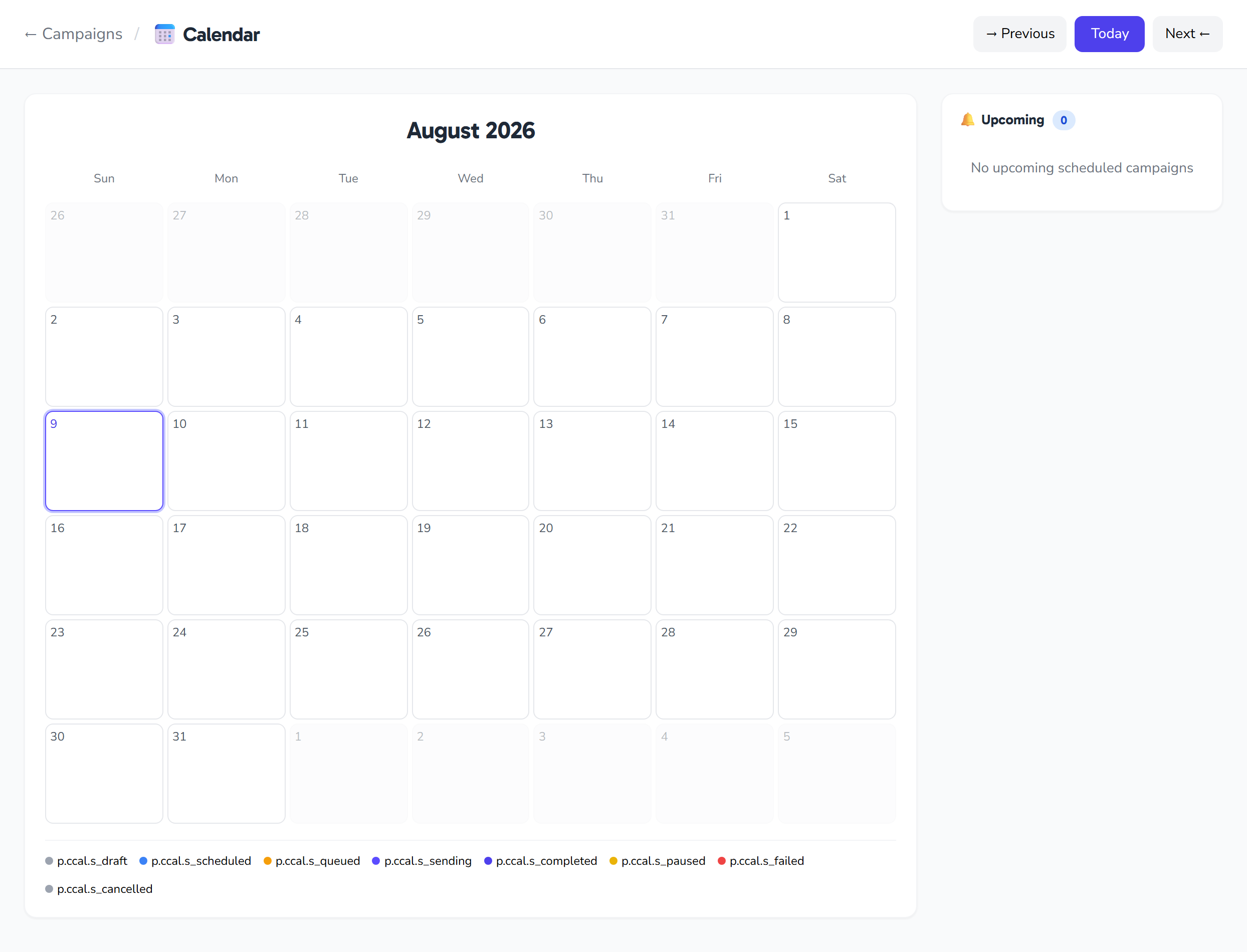
The Campaigns Calendar shows your campaigns on a full monthly calendar instead of a long list, so at a glance you can see what's scheduled, what's sending now, and what completed during the month. Each campaign appears as a colored chip inside its day cell, and the color reflects its status.
Every campaign is placed on its day by schedule time (scheduled_at) first, then by start time (started_at), then by completion time (completed_at). Beyond viewing, the calendar lets you reschedule any campaign directly, or clear its slot.
Access note: The page is available only after you sign in, and the data is tied to your account. The calendar shows campaigns for the currently active WhatsApp account; switch the active account and the displayed campaigns change with it. Rescheduling goes through a protected API that requires the appropriate access.
Moving between months
Three navigation buttons sit at the top of the page:
| Button | What it does |
|---|---|
| Previous | Goes to the earlier month |
| Today | Returns to the current month |
| Next | Goes to the following month |
The page reloads on the chosen month (in YYYY-MM form), and if you open the calendar without picking a month it starts on the current month by default. The month and year appear as a heading above the grid, in your language.
There is also a Back to campaigns list link (/campaigns) to leave the calendar view.
Reading the calendar grid
The calendar is a seven-column grid starting on Sunday. The leading and trailing cells are filled from the two neighboring months (shown dimmed) to complete the week rows.
- Each day cell is clickable, opening its details in the side panel.
- Today is marked with a colored ring.
- The selected day is marked with a blue ring.
Weekday headers
Seven weekday headers run across the top of the grid, starting on Sunday and ending on Saturday, following the interface language.
Per-day campaign chips
Each cell shows a count badge with the day's total, then up to three chips for that day's campaigns; each chip carries the campaign's time and name in its status color. If a day has more than three campaigns, the rest collapse into a "+N more" line.
The dimmed leading and trailing cells belong to the two adjacent months (to complete the week rows), so campaigns falling on those days appear there too.
Selected-day details
Clicking any day opens a side card listing that day's campaigns. Each item is a link to its campaign page (/campaigns/{id}) and shows:
| Field | Shown |
|---|---|
| Name | The campaign name |
| Status | A colored status pill |
| Time | ⏰ The schedule time (scheduled_at) |
| List | The recipient list name (if present) |
| Progress | Sent out of total recipients (sent / total) |
If the selected day has no campaigns, an empty-state message appears.
Upcoming campaigns
Alongside the calendar is an Upcoming panel that lists only campaigns whose status is scheduled and whose schedule time is in the future, sorted ascending by the soonest. Each item links to its campaign page and shows the name with its date and time. A count badge shows how many are upcoming, or an empty-state message appears when nothing scheduled lies ahead.
Color legend: campaign statuses
The calendar colors each campaign chip (plus its status dot and the legend) by one of eight statuses. This is a read-only display; status is not edited from the calendar.
| Status | Meaning |
|---|---|
Draft (draft) |
A campaign being prepared |
Scheduled (scheduled) |
Has a future send time |
Queued (queued) |
In the send queue |
Sending (sending) |
Being sent right now (its chip pulses) |
Completed (completed) |
Finished sending |
Paused (paused) |
Temporarily paused |
Failed (failed) |
Could not complete |
Cancelled (cancelled) |
Cancelled |
A legend row maps each color to its status.
Rescheduling a campaign
Click a campaign chip inside a day cell to open the Reschedule modal. At its center is the date/time field:
| Property | Details |
|---|---|
| Field type | A date-and-time picker (datetime-local) |
| Minimum | Won't accept a time in the past (the minimum is now) |
| Initial value | The campaign's current schedule time if set, otherwise one hour from now |
After picking a time, press Save; the request goes to /api/v1/campaigns/{id}/reschedule, and on success the modal closes and the calendar reloads. The Save button is disabled while the field is empty. To close without changes, use the cancel button or click outside the modal.
Removing the schedule
From inside the reschedule modal you can clear the campaign's slot entirely. The system asks for confirmation first, then sends an empty value (scheduled_at: null) to the same endpoint to remove the schedule.
Quick tips
- Use the Today button to jump back to the current month after navigating.
- Watch the Upcoming panel to review what's scheduled before it's due.
- If a campaign lands on the wrong day, open Reschedule from its chip and correct the time on the spot.
- Open a day's details to track send progress (sent out of total) without leaving the calendar.