 Fynchat
Creating and Approving WhatsApp Templates
Build a message template, add variables and buttons, and submit it to Meta for approval — then track, sync, and fix rejections.
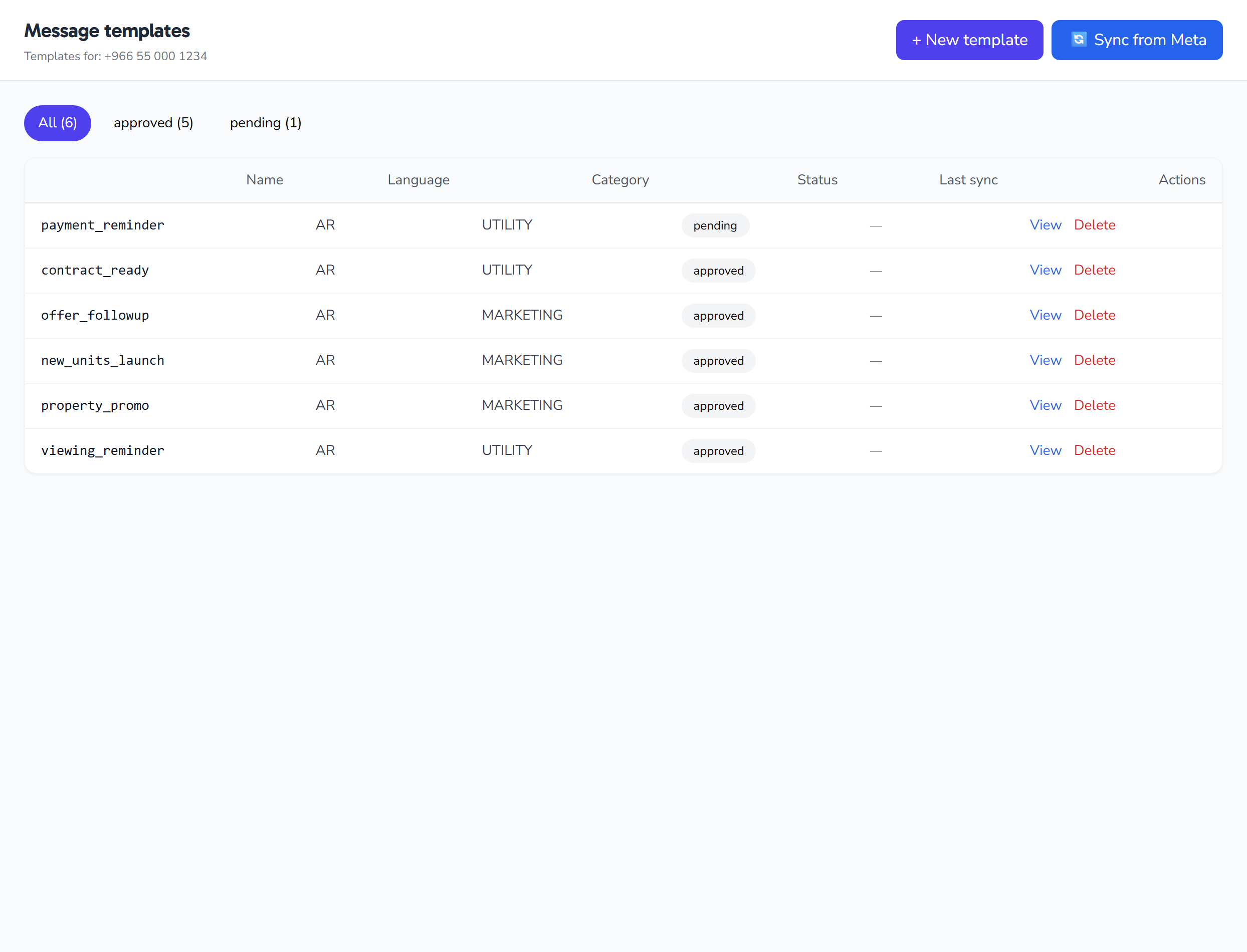
What is the Templates page?
WhatsApp templates are messages pre-approved by Meta that you can send to customers outside the free-reply window. From the /templates page you create your templates, preview them, submit them to Meta for review, and track their status — all in one place.
The page lists your existing templates in a table with status filter pills above it, and opens a two-column Create/Edit modal: the form on one side, and a live WhatsApp-style preview on the other that updates as you type.
Access: The page is customer-facing, but it shows templates for your currently active WhatsApp account only; if you have no active WhatsApp account, no templates will appear. Syncing with Meta also requires a business account id configured in settings first.
Template statuses and filters
Above the table are filter pills that show templates by status, each with a count, plus an "All" option. The possible statuses:
| Status | Meaning |
|---|---|
DRAFT |
Saved locally only, not yet sent to Meta |
PENDING |
Sent to Meta and currently under review |
APPROVED |
Approved by Meta and ready to use |
REJECTED |
Rejected by Meta (rejection reason shown) |
PAUSED |
Temporarily paused by Meta |
DISABLED |
Disabled by Meta |
Editing is available only for templates in DRAFT or REJECTED status; approved templates cannot be edited.
Creating a template: the fields
Click Create new template to open the Create modal. The form is split into the following fields:
| Field | Required? | Rules |
|---|---|---|
| Template name | Yes | The template's machine name. Auto-lowercased with spaces replaced by underscores on submit; must match ^[a-z0-9_]+$ (up to 512 characters). Example: welcome_message. |
| Language | Yes | The template language. Options: ar (Arabic, default), en, en_US, en_GB. |
| Category | Yes | Meta category: MARKETING (default), UTILITY, or AUTHENTICATION. Choosing AUTHENTICATION automatically adds a Copy code button and disables the opt-out button. |
| Header | Optional | Toggled by a checkbox — see details below. |
| Body | Yes | The message text, up to 1024 characters, supporting {{N}} variables — see details below. |
| Footer | Optional | Toggled by a checkbox; free text limited to 60 characters. |
| Buttons | Optional | Toggled by a checkbox; up to 3 buttons — see details below. |
Header
When the header is enabled, you pick its format from a list: TEXT, IMAGE, VIDEO, or DOCUMENT.
- Text header (TEXT): text up to 60 characters, allowing at most one variable with an example value.
- Media header (IMAGE / VIDEO / DOCUMENT): requires uploading a file. Accepted formats:
- Image:
image/jpeg,image/png(recommended 1200×628, aspect ratio 1.91:1). - Video:
video/mp4,video/3gpp. - Document:
application/pdf.
- Image:
Body and variables
The body text is required, with a maximum of 1024 characters. You insert {{N}} variables via the "Insert variable" picker, which is mapped to a catalog of data sources; the groups shown by default are contact, business, and custom. Each variable needs a sample value to show Meta what it will look like.
The body cannot start or end with a variable; a variable must be surrounded by text.
Buttons
When buttons are enabled you can add up to 3 buttons total, across four types each with its own limit:
| Type | Max | Notes |
|---|---|---|
QUICK_REPLY |
10 | — |
URL |
2 | Must start with http:// or https://; supports {{1}} with an example |
PHONE_NUMBER |
1 | + followed by digits (6 to 15) |
COPY_CODE |
1 | — |
Button text is limited to 20 characters, and two buttons cannot share the same text. To move faster, presets are available: yes/no, visit site, order tracking, and auth.
Opt-out button (marketing only)
For MARKETING templates there is a checkbox that automatically appends an opt-out quick-reply button labeled "Stop promotions" (Arabic templates get the Arabic equivalent automatically). The checkbox is disabled and auto-checked if you have already added a manual opt-out button. An opt-out button is required when submitting a marketing template for approval.
Save as draft, or submit for approval
At the bottom of the form is the "Submit for Meta approval" checkbox — it decides the template's fate:
- Unchecked: the template is saved locally as
DRAFTonly and is not sent to Meta. Good for finishing later. - Checked: the template is saved and sent to Meta for review, so its status becomes
PENDING(or whatever Meta returns). This is the core "get approved" action.
After submitting: review, rejection, and resubmission
Once submitted, the template stays PENDING until Meta decides: APPROVED or REJECTED.
On rejection, the view modal shows the rejection reason (rejected_reason) in a red banner explaining why Meta rejected the template. You can then edit the rejected template and resubmit it (editing is available for DRAFT and REJECTED only). Resubmitting an existing template deletes the old Meta template and recreates it.
Syncing with Meta
Syncing pulls the status and rejection reason from Meta into the database:
- Sync all templates — pulls statuses and rejections for every template at once.
- Sync one template — updates a specific template (requires a
meta_id, i.e. it has actually been sent to Meta).
Remember that syncing all templates requires a business account id configured in settings first.
Actions summary
From the /templates page you can:
- Create a new template — opens the two-column Create modal.
- Save as draft — saves with
DRAFTstatus without sending to Meta. - Submit for approval — saves and sends to Meta (status becomes
PENDING). - Edit a template — for
DRAFTandREJECTEDonly. - Delete a template — removes it locally (and from Meta if it has a
meta_id). - View a template — read-only modal with a WhatsApp-style preview and Meta ID / last-sync info.
- Sync all or sync one template.
- Upload header media or re-upload it for an existing media-header template.
- Filter by status via the pills at the top.
- Insert a variable into the body and map it to a data source.
Quick tips
- Pick the right category from the start; it determines the Meta rules applied to the template (such as required buttons and the opt-out button).
- Save unfinished work as a draft, and submit for approval only when the template is complete.
- Respect the length limits (header 60, body 1024, footer 60, button text 20) to avoid rejection.
- Do not start or end the body with a variable.
- For marketing templates, leave the opt-out button enabled — it is required.
- After some time, click Sync to refresh statuses from Meta and see the reason behind any rejection.