 Fynchat
Importing and exporting contacts
Upload your contacts from a CSV or Excel file through a four-step wizard with column mapping and duplicate options, and export your current contacts in one click.
Overview
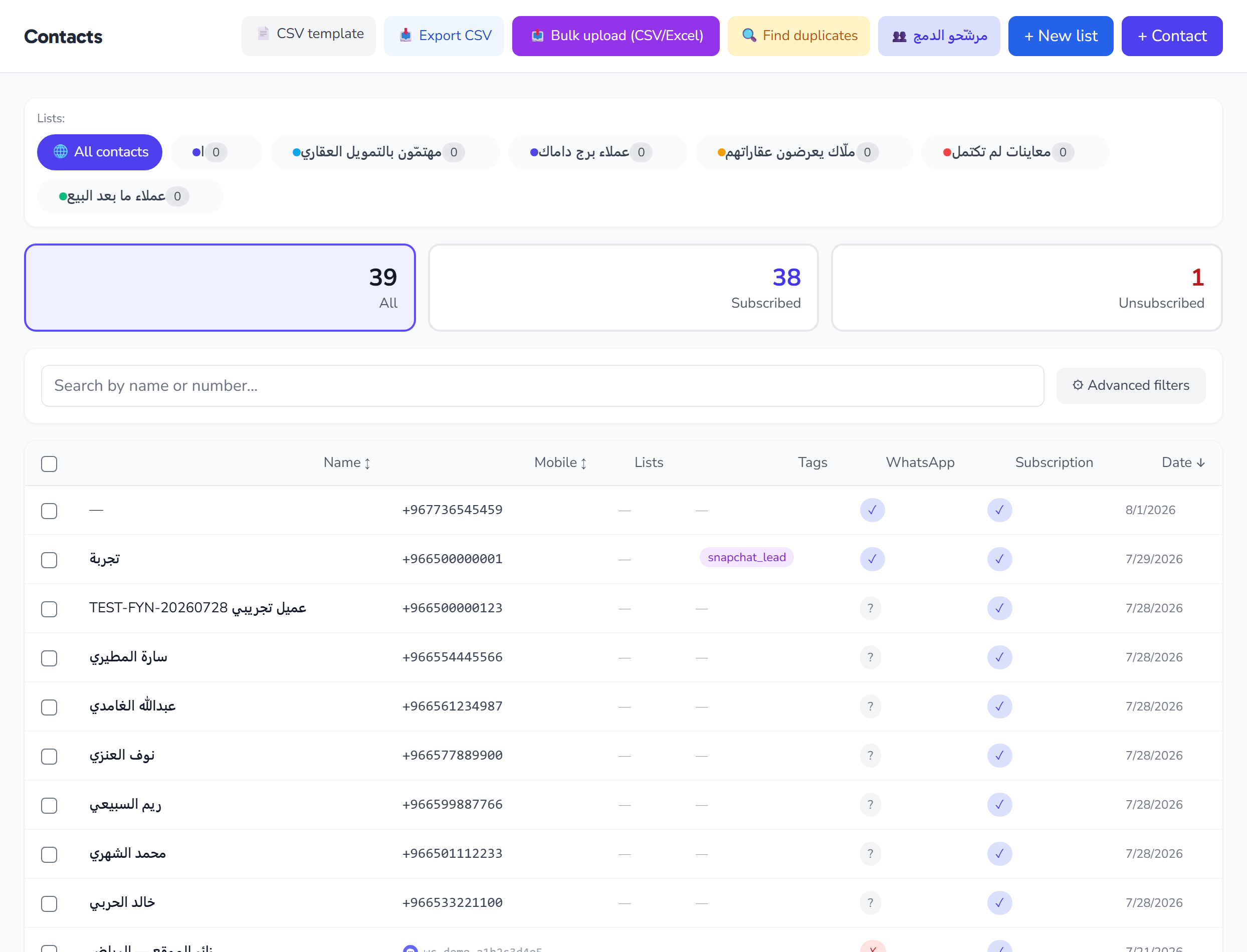
From the Contacts page you can move your customer base to and from a file easily:
- Download template — a ready file with the correct columns to fill in.
- Import — a four-step wizard for uploading a CSV or Excel file.
- Export — downloads your current contacts (per the active filter) as a file.
Download the template
Before importing, click Download template to get a file with the expected columns. Filling your data into the template makes column mapping in the wizard automatic and more accurate.
Importing: the four-step wizard
Click Import to open the wizard, which moves through four steps shown in a header bar:
Step 1: Upload the file
Drag and drop your file into the drop area, or click to pick it. Accepted formats: CSV and Excel (.csv, .xlsx, .xls). After choosing the file, click Continue to analyze it and show a summary.
Step 2: Map columns and options
The wizard shows your file's columns with a sample preview of the rows and attempts to map columns automatically. Review the mapping for each field:
| Field | Required? |
|---|---|
| Phone number | Yes (you can't continue without it) |
| Name | Optional |
| Language | Optional |
| Tags | Optional |
| Optional | |
| Notes | Optional |
Then set the import options:
| Option | Description |
|---|---|
| WhatsApp account | The account the imported contacts are tied to |
| Add to list | A list all imported contacts are added to (optional) |
| Duplicate strategy | What happens on a duplicate number: skip, update, or create new |
| Tags applied to all | Tags added to every imported contact (comma-separated) |
| Skip invalid numbers | A checkbox to ignore rows with invalid numbers instead of stopping the run |
Step 3: Running
After you click Import, the run executes and a waiting screen appears while rows are processed.
Step 4: Result
When it finishes, result stat cards appear:
| Card | Meaning |
|---|---|
| Imported | New contacts added |
| Updated | Existing contacts updated |
| Skipped | Rows skipped |
| Duplicates | Duplicate numbers |
| Invalid | Rows with invalid numbers |
| Total | Total rows processed |
If some rows errored, a list shows them with the row number, phone, and reason for each.
Exporting
Click Export to download the currently visible contacts as a file. Export respects the active filter and search — that is, if you're viewing a specific list, tag, or search result, only what's shown is exported. To export everything, clear the filters first.
Quick tips
- Always start from the template to avoid column-mapping issues.
- The Phone number column is required; make sure numbers are in international format.
- Use Duplicate strategy = update to refresh existing customers' data instead of duplicating them.
- After importing, run Validate WhatsApp numbers on the new list before sending any campaign.