 Fynchat
API keys
Create and manage API keys (create, rotate, revoke) to access the Fynchat public REST API with Bearer authentication.
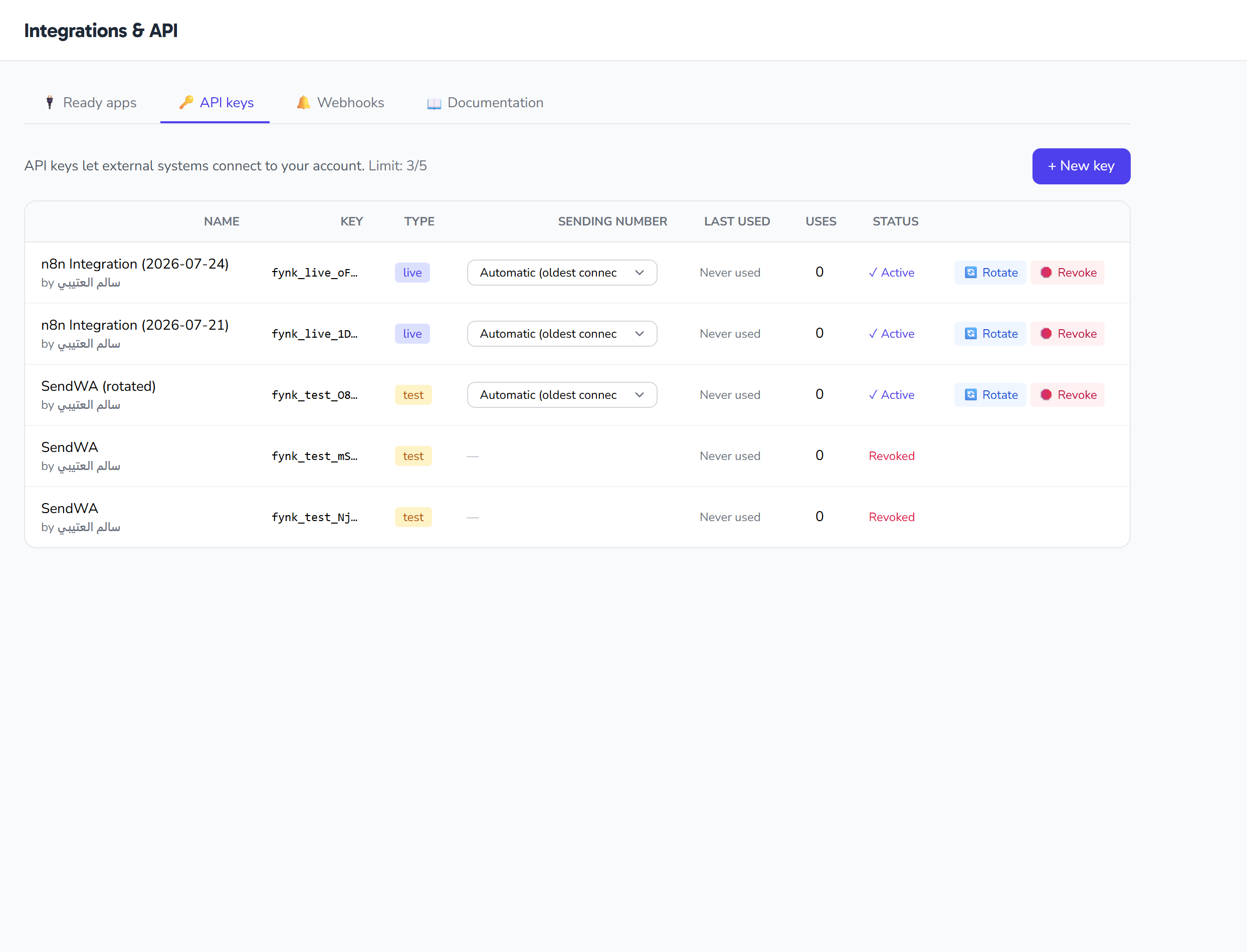
What are API keys?
The API keys tab under Settings → Integrations lets you create server-side keys for the Fynchat public REST API. Your external systems use these keys to authenticate when calling the API. A key belongs to your current workspace.
- API base URL:
https://fynchat.com/api/public/v1 - Authentication: the
Authorization: Bearer <key>header
From this tab you can:
- Create a new key with specific scopes.
- Rotate an existing key (revoke it and issue a replacement with the same scopes).
- Revoke a key you no longer need.
Access to this feature depends on your plan. If you see a lock notice, it is not available on your current plan and you will need to upgrade.
Create a new key
Click the New key button above the list to open the create dialog, then fill in three fields:
| Field | Description |
|---|---|
| Descriptive name | A descriptive name for the key (required, up to 120 characters) — e.g. "Store integration". It later appears in the table. |
| Environment | Choose live for production or test for testing. |
| Scopes | Select at least one scope from the grouped list (required). |
After you save, the system generates the key and shows it only once in an amber banner with a Copy button, along with the message:
The key has been created. Copy it now — it will not be shown again.
Copy the key immediately and store it somewhere safe. The system never stores the original key — it keeps only a hashed fingerprint (SHA-256) and a 12-character prefix for display. Once you dismiss the banner, you can never see the full key again; the table shows only the prefix, as fynk_live_aB….
The key follows the format fynk_{environment}_{random string} — for example fynk_live_... or fynk_test_....
The two environments: live and test
When creating a key you pick its environment:
live— for production (real usage).test— for testing during development.
The environment appears in the Type column as a colored badge for each key.
Scopes
Scopes define exactly what a key is allowed to do, following the principle of least privilege: grant a key only what it needs. The dialog shows 24 scopes across 11 groups, and a Select all button checks them all at once.
| Group | Scope | What it allows |
|---|---|---|
| Messages | messages.send |
Send messages |
| Messages | messages.read |
Read messages |
| Messages | templates.read |
Read templates |
| Contacts | contacts.read |
Read contacts |
| Contacts | contacts.write |
Add/edit contacts |
| Campaigns | campaigns.read |
Read campaigns |
| Campaigns | campaigns.write |
Create/launch campaigns |
| Vehicles | vehicles.read |
Read vehicles |
| Vehicles | vehicles.write |
Add/edit vehicles |
| Properties | properties.read |
Read properties |
| Properties | properties.write |
Add/edit properties |
| Bookings | bookings.read |
Read bookings |
| Bookings | bookings.write |
Create bookings |
| Orders | orders.read |
Read orders |
| Orders | orders.write |
Update orders |
| Support tickets | tickets.read |
Read tickets |
| Support tickets | tickets.write |
Create/update tickets |
| Leads | leads.read |
Read leads |
| Leads | leads.write |
Create/update leads |
| Central requests | requests.read |
Read central requests and their stages |
| Central requests | requests.write |
Create/update requests + move stage |
| Advanced | flows.read |
Read Bot Flows |
| Advanced | webhooks.read |
Read webhooks |
| Advanced | webhooks.write |
Manage webhooks |
Note: in the interface these group names and scope labels are displayed in Arabic; the scope codes (e.g.
messages.send) are the same everywhere.
The keys table
All your keys appear in a table with these columns:
| Column | Content |
|---|---|
| Name | The key name, together with who created it (shown as "by …"). |
| Key | Shows only the prefix — the first 12 characters, as fynk_live_aB… (the full key is never shown). |
| Type | A live or test badge (the key's environment). |
| Last used | The date the key was last used. |
| Uses | How many times the key has been used. |
| Status | Active or revoked. |
Each active key has two buttons: Rotate and Revoke.
Rotate a key
Rotating (the Rotate button 🔄 in the table) revokes the current key and immediately issues a replacement with the same scopes and the same environment, carrying the same name with " (rotated)" appended. The new key is shown once in a blue banner with a Copy button — copy it right away. Use rotation when you suspect a key has leaked, or as part of a periodic renewal cycle.
The button is confirmation-gated before it runs, and the operation is written to the audit log as an api_key.rotated event. You can dismiss the reveal banner using its close button.
Revoke a key
Revoking permanently disables the key (it sets the revoked time to the current moment). After that, any request using this key fails, and the action cannot be undone. The button is confirmation-gated, and after revoking you see the message:
The key has been revoked.
The revoked key stays in the table with a "revoked" status, but without the Rotate and Revoke buttons.
Using the key
Add the key in the Authorization header on every request:
curl https://fynchat.com/api/public/v1/contacts \
  -H "Authorization: Bearer fynk_live_YOUR_KEY"
Plans and limits
This feature is tied to the public_api capability of your plan:
- business plan: up to 5 active keys.
- enterprise plan: unlimited.
- If your plan does not allow the API, a lock panel 🔒 appears at the top of the page, with an Upgrade button that takes you to /upgrade, and the New key button is disabled.
When a limit applies, the top of the list shows how many active keys you have against your allowance.
Tips
- Copy the key the moment you create it — it will not be shown again.
- Grant the fewest scopes possible to each key.
- Use the
testenvironment during development andlivefor production. - Rotate a key whenever you suspect it has leaked, and revoke any key you no longer use.