 Fynchat
Activity logs
A read-only log of the changes your users make in your account — the action, who did it, when, the IP address, and the detailed change.
What are activity logs?
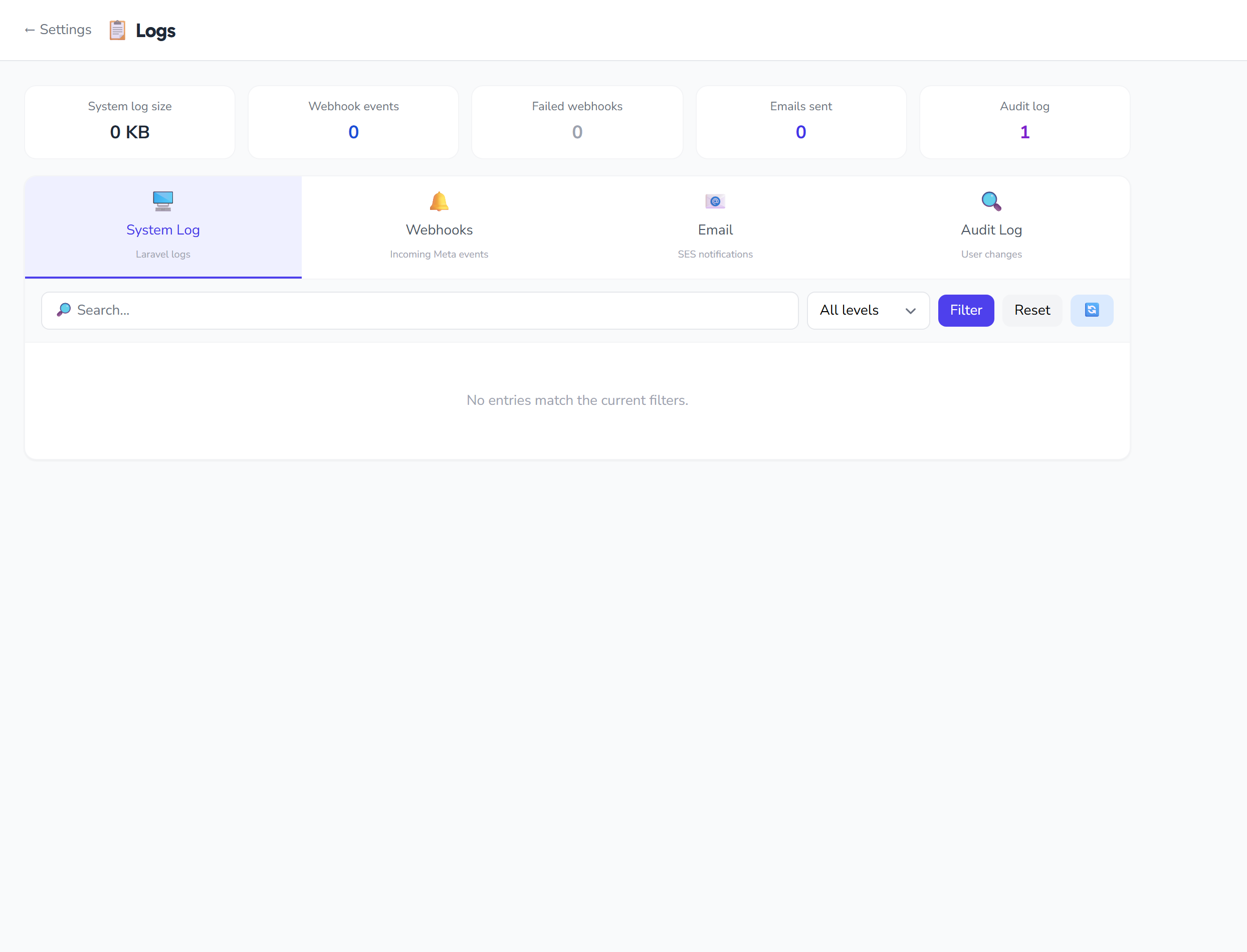
Activity logs are a trail that records what the users in your account did. They live on the Logs page (/settings/logs), in the "Audit Log" (🔍) tab whose sub-caption is "User changes." Each row shows the action that happened, who performed it, when, the IP address, and the details of the change itself.
The Logs page has four tabs — System Log, Webhooks, Email, and Audit Log — and the Audit Log tab is what we mean by activity logs.
Note: The Audit Log lives in your account settings, reached from the Settings page (and there is a "← Settings" link at the top of the Logs page). It isn't restricted to the account owner — any user signed in to your account can open it. Data is isolated per account, so you only ever see your own account's activity. The log is read-only: no creating, editing, deleting, or exporting.
How to open it
- Open the Logs page: /settings/logs.
- Select the "Audit Log" (🔍) tab; only then is the activity list loaded.
To go straight there, open the link with the tab: /settings/logs?tab=audit.
What each row shows
| Column | What it shows |
|---|---|
| Action | The name of the action that happened, as a purple monospaced badge. |
| Actor | The name of the user who performed the action (shown only when an actor exists). |
| Time | The date and time of the action in your local format (short date, with seconds in the time). |
| IP | The IP address the action came from, as "IP: …", shown only when available. |
| ID | The row number, as #<id>. |
| Show changes | A button that expands the change details (shown only when there are recorded changes). |
Viewing the change details
Next to any row that has recorded changes, you'll find a "Show changes" button. Click it and a box expands below the row showing the change content as formatted JSON. Click "Hide changes" to collapse it again.
This is the only detail view — there is no separate detail page; everything about a row appears in place.
Search and filter
On the Audit Log tab, the search box is the only available filter:
- Type your text in the "🔎 Search…" box.
- Press Enter or the "Filter" button to apply the search.
- The system matches your text against the action name and the IP address.
- "Reset" clears the search and returns the full, unfiltered list.
- "🔄" reloads the list to fetch the latest rows.
The level and status dropdowns you may notice belong to the other tabs (System Log / Webhooks / Email) and are hidden on the Audit Log tab; here only the search box applies.
The "Audit log" stat card
At the top of the page there is an "Audit log" stat card showing the total number of audit rows in your account (in purple). It is always shown among the page's header cards.
Limits and notes
- Order: newest first.
- Maximum: only the latest 200 rows are shown, with no pagination.
- Read-only: audit rows cannot be created, edited, deleted, or exported.
- Private to your account: all counts and rows are isolated to your account.
Quick tips
- Use search to trace a specific action or activity coming from a particular IP address.
- Click "🔄" before reviewing to make sure you're seeing the latest activity.
- Expand "Show changes" to see exactly what changed in each operation.