 Fynchat
Building an interactive Meta Flow
Create and visually edit WhatsApp interactive Flows from the list to the builder, then sync to Meta or publish and send a test — all from inside the platform.
What is the Flow builder?
The Flow builder lets you build and visually edit WhatsApp Flows (Meta Flows) with no code, then sync them to Meta and publish. It has two pages:
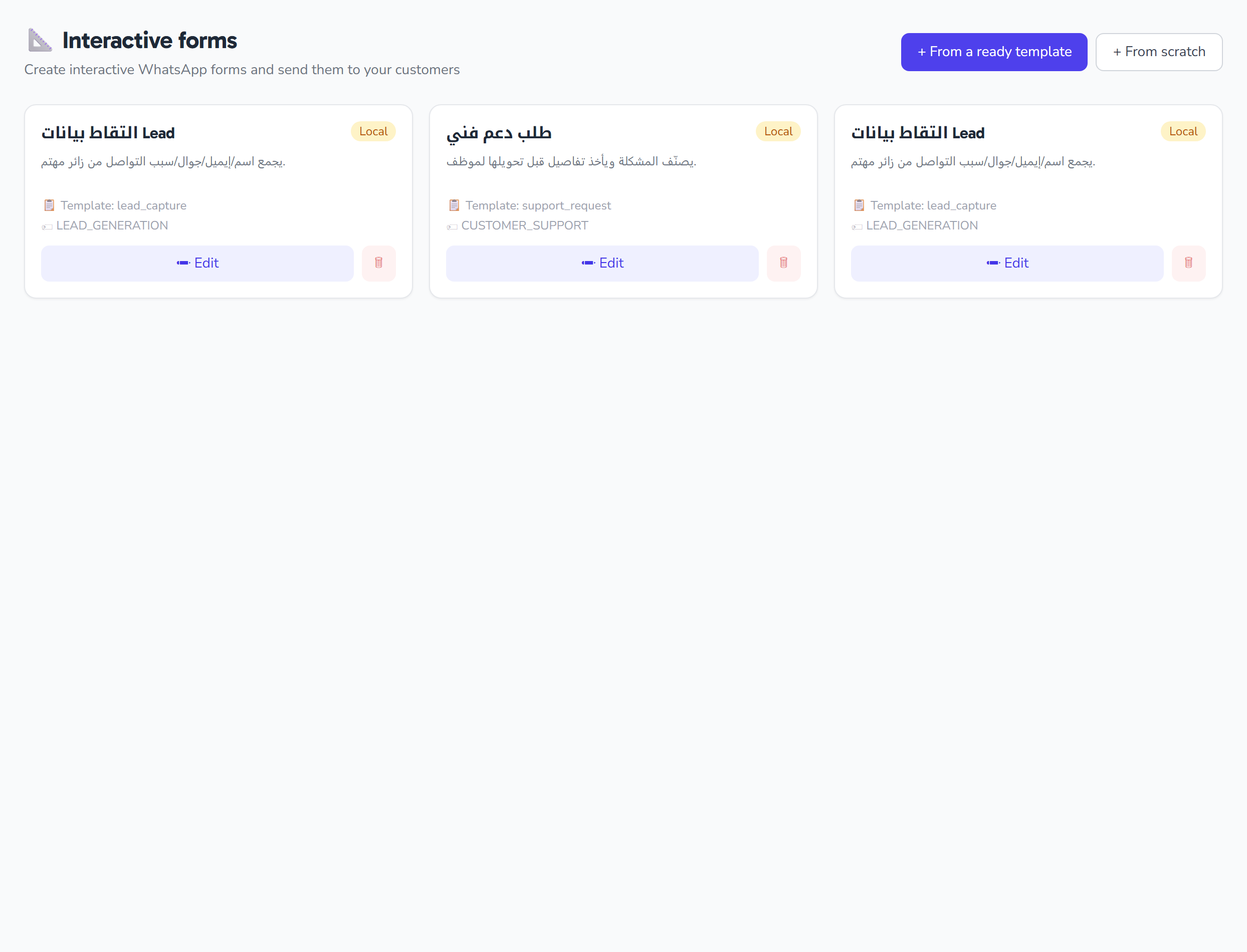
- The Flows page (/flows) — a list of all your flows as cards, where you create, edit, and delete flows.
- The visual builder — an editor that opens when you edit a flow, showing screens, fields, and a WhatsApp-style live preview.
Note: The Flow builder is available to authenticated account users, and each account sees only its own flows (scoped to the tenant and protected by ownership). This feature is separate from the "bot flows" feature — that is an entirely different builder.
The Flows page (list)
The /flows page shows all your flows as cards. From here you create a new flow — from a ready template or from scratch — or open an existing flow in the builder or delete it.
Create from template
The "Create from template" button opens a modal listing the available templates (each with an icon, name, and description). Choosing a template creates a new flow based on it, then opens it directly in the builder so you can continue editing.
Create a blank flow
The "Create blank flow" button asks you for a flow name, then creates a flow with a default definition: a first terminal screen containing a heading and a footer button, then opens the builder so you can build out the rest.
Status badges
Each flow card shows a status badge derived from the flow's status in Meta:
| Badge | Meaning |
|---|---|
| Published | Published and live in Meta |
| Draft | A draft in Meta |
| Deprecated | Deprecated |
| synced | Linked to a Meta ID but not in the states above |
| unsynced | A local flow not yet sent to Meta |
Card metadata
Besides the badge, each card shows:
- Name and description (if any).
- Template key (template_key) if the flow was created from a template.
- Meta ID if the flow is linked to Meta.
- Categories if any.
Edit and delete
- Edit — a link that opens the flow in the builder (
/flows/{id}/edit). - Delete — asks for confirmation, then deletes the flow and reloads the list.
The visual builder
The builder opens when you edit a flow, and it is a multi-pane editor:
- Left: the screens list (add).
- Center: the field canvas for the active screen.
- Right: either the property editor for the selected field, or the live preview when no field is selected.
Flow name and Save
The top bar has a text field to edit the flow name. The "Save" button runs validation, then saves the name, description, and the full flow definition, showing a saving state and a success or error message.
Auto validation
On any change to the flow definition, and before syncing, an automatic validation runs. If there are errors they appear in an amber alert banner, and they block publishing until fixed.
Screens
The side list shows the flow's screens (title/ID and field count):
- Add screen appends a new screen with an auto ID (
SCREEN_n) and a default footer button. - Delete screen removes the active screen after confirmation, and is blocked when only one screen remains.
Each active screen has an editable title and an editable SCREEN_ID in the canvas header.
Fields
From the add-field palette you pick a field type. Supported types:
| Type | Description |
|---|---|
| heading | Main heading (content text) |
| subheading | Subheading (content text) |
| text | Text (content text) |
| caption | Caption / small note (content text) |
| text_input | Single-line text input |
| text_area | Multi-line text area |
| date_picker | Date picker |
| dropdown | Dropdown list |
| radio | Single choice |
| checkbox | Multiple checkboxes |
| opt_in | Opt-in consent |
The footer button is mandatory and always stays the last field on the screen; it is not shown in the add palette (it is managed automatically).
Reorder and delete fields
- Fields can be moved up/down, with the footer always kept as the last field.
- Any field can be deleted (except the footer, which has no delete button), and the footer is automatically re-ensured after any delete.
Configuring field properties
When you select a field, its property editor appears in the right pane, and the options differ by type:
- Content fields (heading / subheading / text / caption): a multi-line text area to edit the field's text.
- Input fields (text_input / text_area / date_picker / dropdown / radio / checkbox / opt_in): a name (in
lowercase_with_underscoresform), a label, and a Required checkbox. - Input type for text_input only: a select that sets input_type among text, email, phone, number, and password.
- Options for dropdown / radio / checkbox: a list editor to edit each option's id and title, remove an option, and add a new one.
- Footer: an editable button label, and an action select of either complete or navigating to another screen by its ID.
Live preview
When no field is selected, the right pane shows a WhatsApp-style live preview of the active screen, drawing each field type (headings, inputs, text area, date picker, dropdown, single choice, checkboxes, opt-in, and the footer button) as disabled preview controls.
Publishing and syncing to Meta
The builder offers two sync actions. Both save silently, then re-validate (stopping on errors), then send the request to Meta. The buttons are disabled as long as validation errors exist:
- Save & sync as draft — syncs the flow to Meta as a draft.
- Save, sync & publish — syncs the flow and publishes it in Meta.
Meta preview
When the flow has a Meta preview link, a link appears in the top bar that opens the Meta-hosted preview in a new tab.
Send test
When the flow has a Meta ID, a "Send test" button appears that opens a modal to enter a phone number and send the flow to it for testing. The modal warns you that the tester must be added when the flow is not Published, and it handles Meta's Integrity block (Integrity / code 139000) by falling back to preview-link guidance.