 Fynchat
Your Company Profile
A single page to enter your business identity, services, contacts, location, working hours, and policies, organized into nine sections with a completion tracker and one save button.
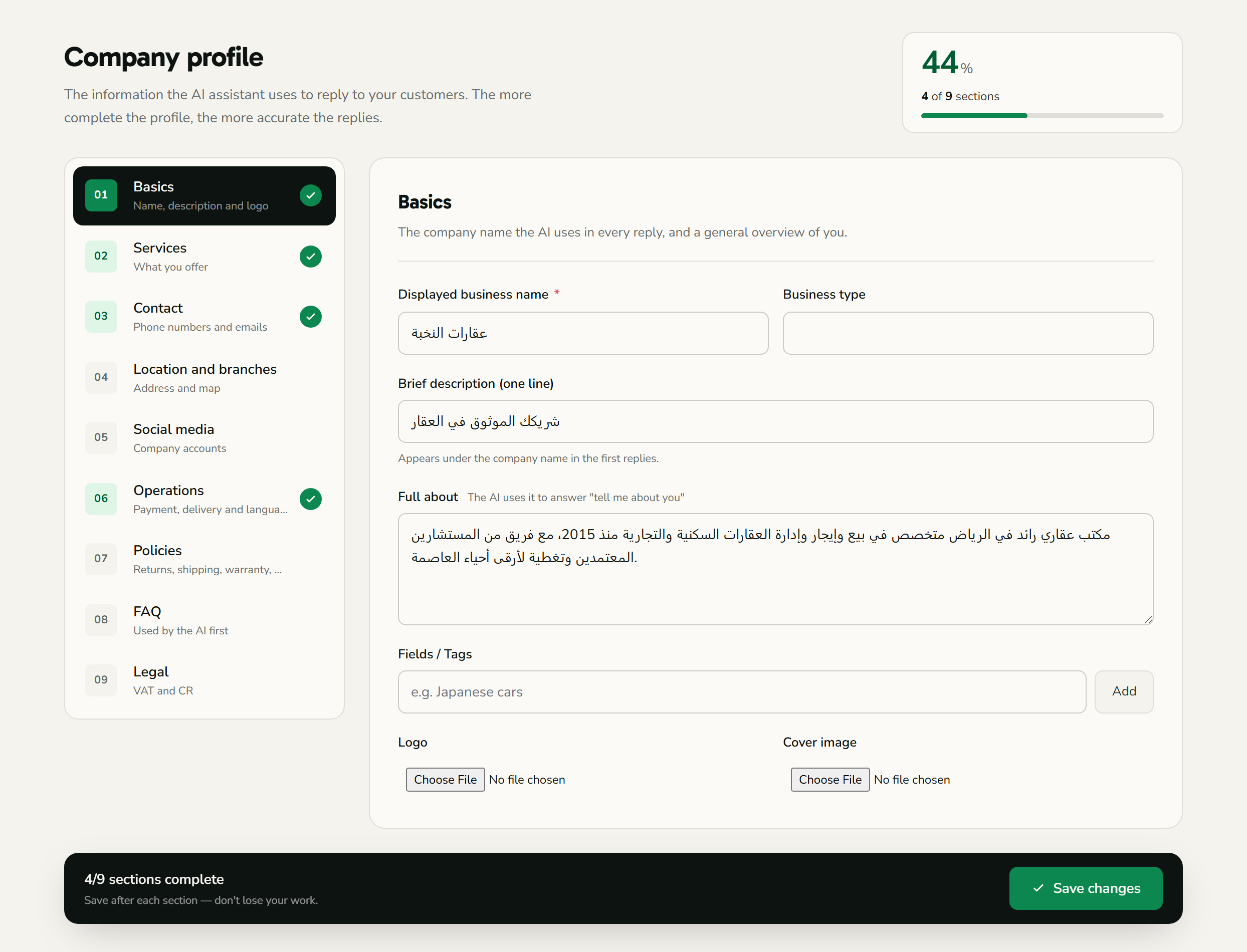
What is the company profile?
The company profile is a single page at /settings/company-profile that gathers all the core information about your business: identity, services, contact channels, location and branches, working hours, social accounts, payments and delivery, policies, FAQ, and legal details.
The page is organized into a sidebar of nine sections, along with a completion tracker that shows a percentage of what you've filled in, and a sticky save bar that saves all sections at once.
1. Basics — business identity
The first section holds your business identity:
| Field | Description |
|---|---|
| Display name | Your company name as shown to customers. Marked with a required asterisk (*) — the only field that has one — and defaults to your registered company name. |
| Business type | A dropdown of 16 ready-made types (see the list below). |
| Tagline | A short line summarizing your business. |
| About | A longer, multi-line description. |
| Industries (tags) | Add free-form tags for your fields of work: type a tag and press Enter or the add button, and remove any tag individually. |
| Logo | Your company logo image, up to 2 MB, with a preview of the current image if one exists. |
| Cover image | A cover image, up to 5 MB, with a preview of the current image. |
The 16 available business types: online store, car showroom, real-estate office, restaurant, salon, clinic, law firm, travel agency, software development company, school/academy, pharmacy, clothing store, electronics store, cleaning services, maintenance services, and other.
2. Services & products
- Services summary: free text describing what your company offers in general.
- Services list: add multiple services; each service has a name, a description, and a price from (a numeric value). Add a new row with the add button, and remove any service individually.
3. Contact info
| Group | Fields |
|---|---|
| Phones | Main phone, WhatsApp number, sales phone, support phone (written in international format such as +966500000000). |
| General email, sales email, support email (must be valid email addresses). | |
| Website | Your company website link (must be a valid URL). |
4. Location, branches & timezone
Address: address, city, district, country (defaults to "Saudi Arabia"), postal code, and a Google Maps link.
Timezone 🕐: pick your timezone from the list. The timezone drives your working hours, reply timing, and reports according to your region.
Branches: add multiple branches; each branch has a name, address, phone, and map link. Add or remove branches as needed.
Working hours
Set your business hours for each day of the week (Saturday to Friday):
- Each day has an enable checkbox; enable it to set that day's times. A day that isn't enabled shows "Closed."
- Each day can have one or more periods with a From and To time. The default period is 09:00–17:00.
- Click "+ Another period" to add a second period to the same day (for example a morning and an evening period); the added period defaults to 16:00–21:00.
- The remove-period button is disabled when only one period remains.
- Click "Copy to all" to copy one day's times to the rest of the days.
These working hours are used by the platform's working-hours gate (for example, determining whether a message arrives during business hours).
Link working hours to the Booking app
This option appears only when the Booking app is installed. When you enable 🔗 Link these working hours to the Booking app, the company working hours become the source the Booking app uses to determine account-wide availability.
Enabling the link applies directly to the Booking app's setting. For more details, see the Booking app.
5. Social media links
Add the links or handles for your accounts on: Instagram, Twitter / X, Snapchat, TikTok, Facebook, LinkedIn, YouTube.
6. Payments, delivery & languages
Payment methods: choose what you accept from the ten options (checkboxes): cash, Mada, Visa, Mastercard, Apple Pay, STC Pay, bank transfer, cash on delivery, Tabby, Tamara. Default: cash and Mada.
Delivery: enable the "Delivery available" checkbox to reveal the fields: delivery fee, free above a certain amount, delivery time (days), and delivery areas.
Languages: choose your business languages — Arabic (default) and/or English.
7. Policies
Four multi-line policy texts:
- Return policy
- Shipping policy
- Warranty policy
- Privacy policy
8. FAQ
Add a list of questions and answers; each item has a question (single line) and an answer (multi-line). Add items with the add button, remove any item, and a live counter shows the number of questions.
9. Legal & custom fields
- VAT number: for example
3xxxxxxxxxxxxxx3. - CR (commercial registration) number: for example
1010xxxxxx. - Custom fields: add any extra information as a key/value pair (type the key and value, then add), and remove any field as needed.
Saving & the completion tracker
- Completion tracker: at the top of the page it shows a percentage calculated from how many of the nine sections you've filled in, while the save bar shows the count of completed sections out of nine. It's a guide to help you complete your profile, not a requirement for saving — you can save at any percentage.
- Save button: in the sticky save bar at the bottom of the page. It saves all sections at once and is disabled while saving. On success, the message "✓ Company profile saved" appears.