 Fynchat
First-run setup wizard
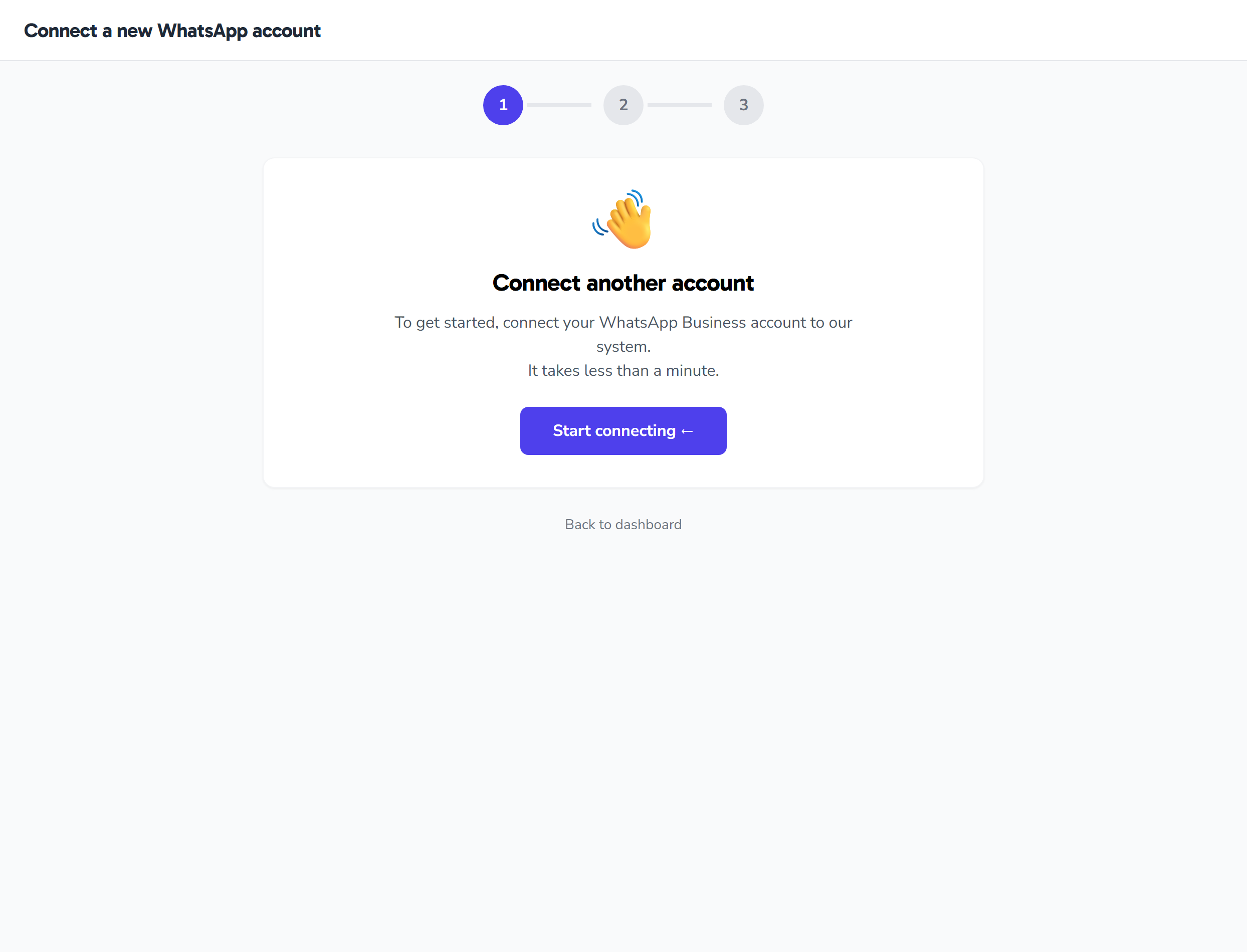
What happens at /onboarding on first sign-in — a three-step wizard that welcomes you, connects your WhatsApp account instantly through Facebook, then takes you to the dashboard.
What is the first-run setup page?
The /onboarding page is the first thing you see after creating your Fynchat account: a simple three-step wizard that takes you from a welcome screen, to connecting your WhatsApp Business account, to your dashboard. Its only goal is to link your WhatsApp number to your account as quickly as possible.
In the current state, the connection method available on this page is instant Facebook connect (Embedded Signup), where Meta handles most of the steps for you.
Note (access): the /onboarding page is available to any signed-in user with a verified email, even before connecting WhatsApp or subscribing to any plan. No special permission is required to open it.
The three steps
A progress indicator with three circles appears at the top of the page and moves with you step by step:
| Step | What happens |
|---|---|
| 1. Welcome 👋 | A welcome screen with a button to start setup |
| 2. Connect | Connect your WhatsApp account instantly through Facebook |
| 3. Done ✅ | A success screen, then an automatic redirect to your dashboard |
Step 1: Welcome
The page opens with a welcome screen showing your account name and a single button to start setup. Press it to move to the connect step.
Step 2: Instant Facebook connect
This step shows the instant connect (Embedded Signup) panel with a blue button bearing the Facebook logo. When you press it, a Facebook window opens where you complete the steps Meta presents. Once you finish, the window returns to the page, the connection is created automatically, and you move to the success step. While the connection is being processed, the button shows a busy state until it completes.
Important notes about the connect button:
- The button stays disabled until Facebook's tools finish loading in your browser; if it looks greyed out, wait a moment for it to be ready (a small hint appears while it loads).
- If the connection settings are not ready on our side, a yellow warning appears and the button stays disabled — in that case, contact support.
If Facebook returns you to the /onboarding page after you complete the steps there, the wizard automatically picks up the result from the link and finishes the process without any action from you.
Step 3: Connected
On a successful connection a success screen appears (with a ✅), and you are automatically redirected to your dashboard (/dashboard) after about two seconds.
If you already have a connected account
If you have already connected at least one WhatsApp account, the page changes slightly:
- The page heading and welcome text change to suit adding another account instead of your first connection.
- A "skip" link appears, letting you go straight to the dashboard without completing the wizard. (This link shows only while you are on step 1 or 2.)
When you reach the account limit
If you try to connect an account and exceed the number allowed by your plan, a red notice appears showing how many accounts you have used out of your allowance, along with:
- A button to buy an extra sub-account (at the price shown in the notice),
- A link to the plans page (/billing/plans) to upgrade your subscription.
Choose either one to raise the limit, then try again.
Common issues
- The connect button is grey / not clickable: Facebook's tools are still loading — wait a moment. If a yellow notice says the connection settings are unavailable, contact support.
- You closed the Facebook window or did not complete the steps: an error message appears — press the connect button again to retry.
- The number is connected to another account (cross_tenant_phone_conflict): this means the WhatsApp number is already in use by another account in the system and cannot be connected twice. Use a different number or contact support.