 Fynchat
Automated Replies
Build keyword- and trigger-based automatic reply rules for your WhatsApp bot, with text and media reply types plus dynamic types for real estate, cars, AI, and company info, then test and prioritize them.
What are automated replies?
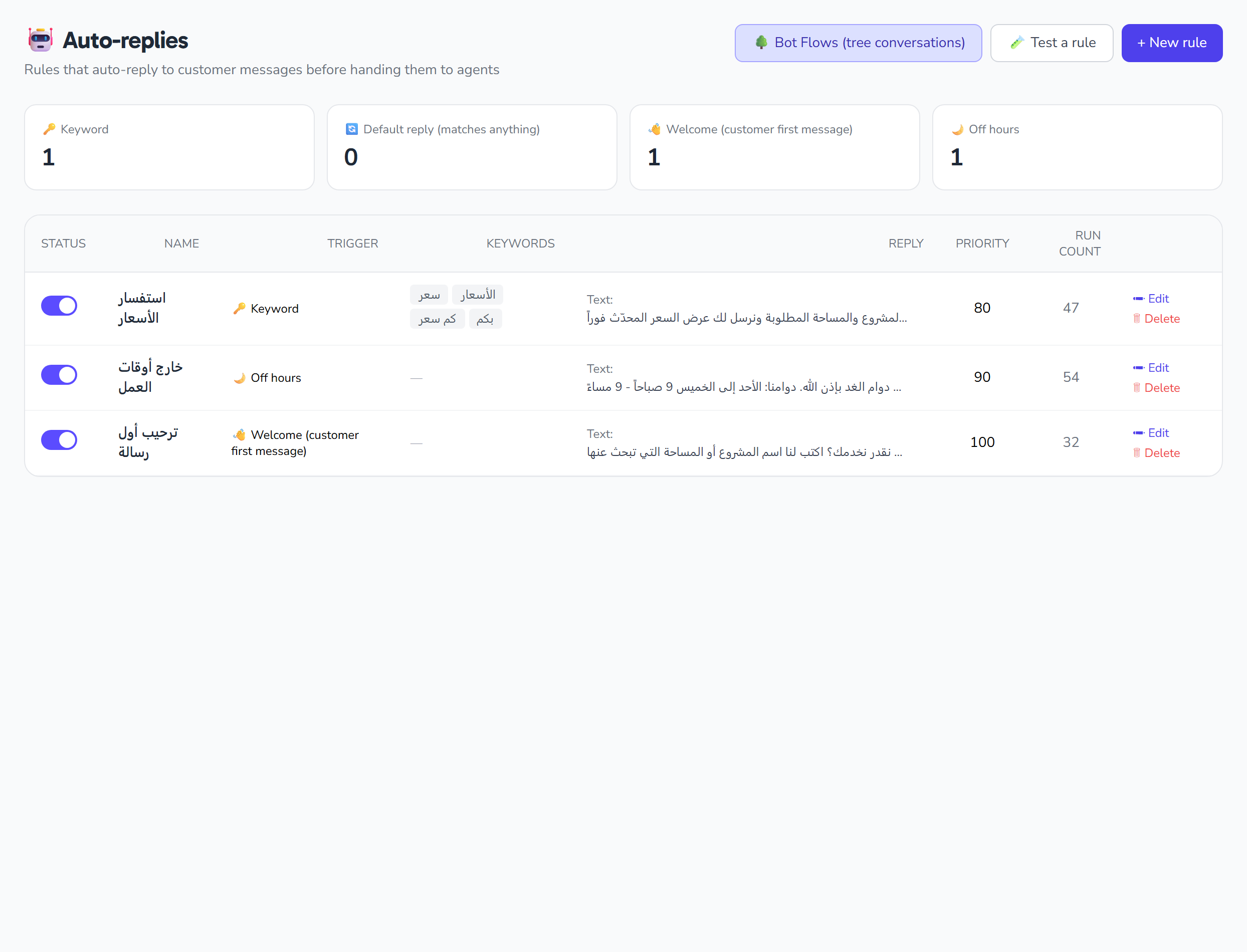
Automated replies let you manage automatic reply rules for your WhatsApp bot: each rule defines when it fires (the trigger) and what reply it sends. All rules are managed from the Automated Replies page.
When you open the page, you see summary cards at the top counting rules by trigger type (keyword, default, welcome, offline), and below them a rules table that shows, for each rule: an active toggle, the name and description, the trigger, the keywords, the reply type with a preview of its body, the priority, and how many times it has fired (triggered_count).
Access to some reply types depends on your plan and the apps you have enabled. If you see a lock notice or an option that can't be selected with an amber warning, it is not available in your current setup and requires enabling the relevant app or upgrading your plan.
Trigger types
The trigger determines when a rule fires, and you pick it from a dropdown:
| Trigger | When it fires |
|---|---|
| Keyword | When the customer's message matches a defined keyword |
| Default | As a default reply |
| Welcome | As a welcome message |
| Offline | As an offline reply |
Keyword matching
When you choose the Keyword trigger, extra keyword-specific options appear:
Match type
Determines how the customer's text is compared to the keywords:
| Match type | Meaning |
|---|---|
| Exact | Matches the whole text |
| Contains | The text contains the keyword |
| Starts with | The text starts with the keyword |
| Regex | Matching via a regular expression |
Keywords
The list of words that trigger the rule. Add a word by typing it and pressing the button or Enter; it appears as a removable chip.
Case sensitive
A checkbox that makes matching distinguish uppercase from lowercase (keyword trigger only).
Reply types
After setting the trigger, you choose the reply type the rule sends:
| Reply type | Description |
|---|---|
| Text | A text message |
| Template | A message template |
| Image | An image reply |
| Video | A video reply |
| Document | A document reply |
| Real estate list (real_estate_list) | A dynamic property listing — requires the Real Estate app |
| Car list (car_list) | A dynamic car listing — requires the Car Dealership app |
| Test drive booking (test_drive_booking) | Test-drive booking — requires the Car Dealership app |
| Financing calculator (financing_calc) | A financing calculator — requires the Car Dealership app |
| AI response (ai_response) | An AI-generated reply — requires the chatbot capability on your plan |
| Company info (company_info) | A summary from your company profile |
For text/image/video/document, a Reply body field (a textarea) appears for writing the message. For dynamic types, the reply body is used as intro text before the results, and each type reveals its own sub-form below.
Dynamic types are locked if the required app or capability isn't enabled: Real estate list requires the Real Estate app; Car list, Test drive booking, and Financing calculator require the Car Dealership app; and AI response requires the chatbot capability (ai_chatbot) on your plan. Unavailable options appear non-selectable with an amber warning note.
Real estate list (real_estate_list)
| Field | What it does |
|---|---|
| Limit | Number of properties returned (1 to 10) |
| Listing type | Filter by: sale or rent |
| Property type | Apartment, villa, land, office, or building |
| City / district | Text filters for the city and district |
| Infer filters | Infer filters from the customer's message |
| Featured first | Show featured properties first |
| Fallback body | Text shown when no listings match |
| Footer body | Text appended below the results |
Car list (car_list)
| Field | What it does |
|---|---|
| Limit | Number of cars returned (1 to 10) |
| Condition | New, used, or certified |
| Max price | Maximum price filter |
| Make | e.g. Toyota |
| Model | e.g. Camry |
| Infer filters | Infer filters from the customer's message |
| Fallback body | Text shown when nothing matches |
| Footer body | Text appended below the results |
Test drive booking (test_drive_booking)
- Reply body — intro text for the booking.
- Disabled body — a message shown when test-drive booking is unavailable.
Financing calculator (financing_calc)
| Field | What it does |
|---|---|
| Default price | The starting base price |
| Down payment percent | The initial down-payment percentage |
| Years | The financing term in years |
| APR | The annual percentage rate (step 0.1) |
| Disabled body | A message shown when the financing calculator is disabled |
Company info (company_info)
- Sections — a set of checkboxes choosing which company-profile sections to include: about, contact, location, hours, social, services, payment, delivery, policies, faq.
- Custom template — an optional template that supports variables like
{{company.name}}and{{company.phone}}. - Footer body — text appended below the reply.
The data for this type is sourced from your company profile.
Common settings
These fields apply to every rule regardless of type:
| Setting | What it does |
|---|---|
| Priority | A number from 1 to 9999 ordering which rule matches first (default 100) |
| Cooldown seconds | A throttle in seconds (0 to 86400) before the same rule fires again; auto-set to 0 for conversational/dynamic reply types |
| Active | Enables the rule (default: enabled) — toggled in the form or via the row switch in the table |
| Stop after match | When enabled, stops evaluating the remaining rules once this rule matches (default: enabled) |
Managing rules
- Create a rule — open the create modal, fill in the fields, then save to add the rule.
- Edit a rule — open a rule from the table, edit its fields, then save.
- Delete a rule — delete the rule after confirming.
- Enable/disable — use the row switch in the table to toggle a rule's state directly.
Testing a rule
The Test modal lets you send a sample message body and see which rule matches it. Type a message the way a customer would, and the matching rule is shown. This is an in-page preview of rule matching that helps you tune your keywords and priorities before a rule goes live.
Flow bot
At the top of the page there is a link to the flow bot at /auto-replies/flows. This is a separate feature for building multi-step conversation flows, linked from the page header.
Quick tips
- Order your rules by priority so more specific rules match before general ones.
- Enable Stop after match on rules you want to be the final reply, with no further rules evaluated after them.
- Use the Test modal to try expected customer messages and confirm the correct rule matches.
- Set a cooldown to avoid sending the same reply to a customer repeatedly in a short window.