 Fynchat
Replying to conversations in the inbox
How to reply to customers, use quick replies, and attach files.
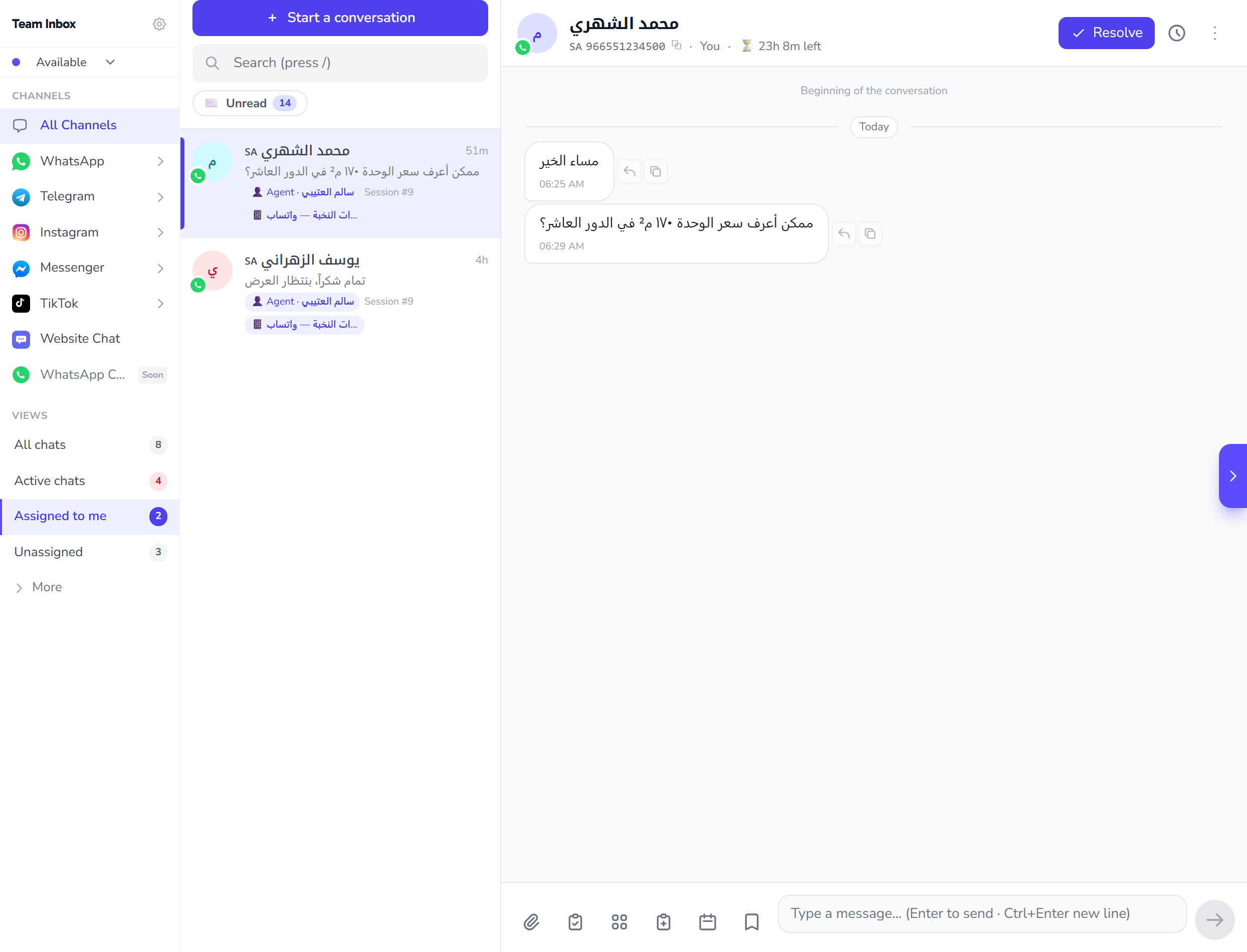
The 24-hour window
An important concept in WhatsApp Business:
As soon as a customer sends you a message, a 24-hour window opens during which you can reply with any free-form message (no templates required).
After 24 hours, you can only reply with an approved template.
Replying to a message
- Go to the inbox
- Select the conversation from the list
- Type your message at the bottom
- Press Send (or Enter)
Quick Replies
To save time, save frequently used replies:
- Settings → Quick Replies
- + New reply:
- Shortcut:
/shipping - Text: "Your shipment has left the warehouse and will reach you within 2–3 business days."
- Shortcut:
- In the inbox, type
/shippingthen Enter — the reply is inserted automatically
Attaching files
Click the 📎 in the input box:
- Image (JPEG / PNG)
- Video (MP4 / 3GP)
- Document (PDF)
- Audio (MP3 / OGG)
Maximum size: 16 MB per file.
Customer tags
Add tags to organize customers:
- Click the customer's name in the conversation header
- + Tag:
VIP,New order,Needs follow-up
Use tags later to filter contacts or target campaigns.
Transferring a conversation to a colleague
If you use the system with a team:
- Click ... → Transfer to
- Choose the colleague
- Add an internal note (not visible to the customer)
Common issues
"I can't send — the 24 hours have passed"
Use an approved template from the Templates button in the conversation header.
"The customer isn't receiving messages"
- Check that their number is correct and registered on WhatsApp
- Check that they haven't blocked your number
- Review the message status next to it (✓ sent, ✓✓ delivered, 🔵🔵 read)
"Deleting a message after sending it"
Once sent, it can't be deleted on the customer's side (the same WhatsApp rule). You can only delete it from our system (this doesn't affect the customer's phone).