 Fynchat
Inbox routing rules
Create rules that automatically route inbox conversations to a bot, an agent, or a queue based on a keyword, the time of day, or other conditions — order them by priority and turn them on or off.
What are routing rules?
Routing rules are an editor where you set how incoming conversations are routed automatically: to a bot flow, to an agent, or to a queue, based on a condition you define (such as a keyword or a time of day). Instead of distributing conversations by hand, you set one rule that works on your behalf.
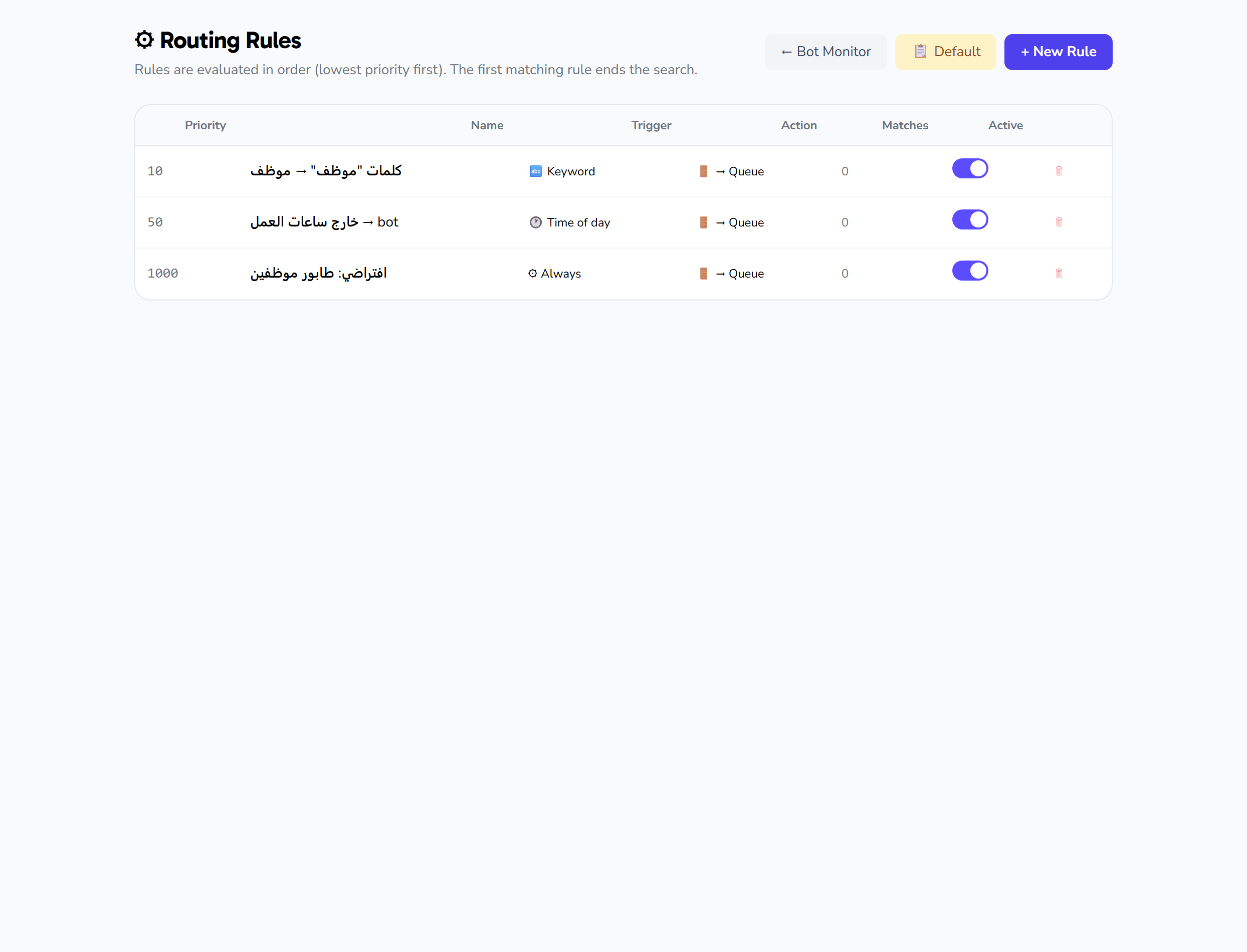
You'll find the editor at /inbox/routing-rules. The page lists your existing rules in a table ordered by priority, and from there you can add a new rule, toggle a rule on/off, or delete it.
Access: Routing rules are specific to your workspace; each rule is created within your workspace and applies only within it.
The rules table
When you open the page, you see your current rules in a table. Each row shows these columns:
| Column | What it shows |
|---|---|
| Priority | The rule's evaluation order number (rules are sorted by it, ascending) |
| Name | The rule's name/label |
| Trigger type | The condition that fires the rule |
| Action type | What happens when the rule matches |
| Match count | How many times the rule has matched (read only) |
| Active | An on/off toggle for the rule |
| Delete | A button to delete the rule |
Adding a new rule
Click the "Add rule" button to open the creation modal, fill in the fields below, then click Save. To close the modal without saving, use the Cancel button or the × mark.
| Field | What it means | Notes |
|---|---|---|
| Name | A free-text name or label for the rule | Required, up to 120 characters |
| Priority | A number that sets the rule's evaluation order | Defaults to 500, between 1 and 9999; the smaller number is evaluated first |
| Trigger type | The condition that fires the rule | See the "Trigger types" table below |
| Action type | What happens when the rule matches | See the "Action types" table below |
Some trigger and action types reveal extra fields in the modal when selected, as shown in the two tables below.
Trigger types
You can pick one of these from the "Trigger type" dropdown:
| Value | Meaning | Extra fields in the form |
|---|---|---|
always |
Always fires | None |
keyword |
A keyword | A Keywords field |
first_message |
The first message in the conversation | No config field in the current form |
time_of_day |
Based on the time of day | A From and a To time field |
tag |
A tag | No config field in the current form |
load_threshold |
A load threshold | No config field in the current form |
When you pick keyword: a Keywords field appears — enter the words separated by commas (,). Surrounding whitespace around each word is trimmed, and empty values are removed automatically.
When you pick time_of_day: a From and a To time field appear (time inputs), defaulting to 09:00 and 17:00.
Action types
You can pick one of these from the "Action type" dropdown:
| Value | Meaning | Extra fields in the form |
|---|---|---|
route_to_queue |
Route to the queue | None |
route_to_bot |
Route to a bot | Pick a Flow |
route_to_agent |
Route to an agent | Pick an Agent |
leave_in_queue |
Leave in the queue | None |
When you pick route_to_bot: a Flow field appears to choose the bot flow the conversation will be routed to. The list shows active bot flows only.
When you pick route_to_agent: an Agent field appears to choose the user the conversation will be routed to. The list shows users sorted by name.
Note: A rule can be scoped to a specific WhatsApp account through the API (the
whatsapp_account_idfield), but there is no field for it in the current interface form.
Turning a rule on or off
Every rule has an Active toggle in the table. Click the toggle to enable or disable the rule; the change is saved immediately. Disable a rule instead of deleting it if you want to keep it for later use.
Deleting a rule
Click the delete button on the rule's row. A confirmation prompt appears before deletion, and once confirmed the rule is removed permanently and disappears from the table.
Seeding default rules
The "Default rules" button creates a set of ready-made starter rules for your workspace in one go, then reloads the rules list. It asks for confirmation first. Use it as a quick starting point, then edit the rules or add to them as you need.
Priority and match count
- Priority: Rules are sorted and evaluated in ascending order of the priority number — that is, the smaller number is evaluated first. Set the numbers to get the order you want among your rules.
- Match count: A read-only column that shows how many times each rule has matched, helping you see which rules are effective in practice and which haven't been used.
Going to the Bot Monitor
From the page there is a button that takes you to the Bot Monitor at /inbox/bot-monitor to watch the bot at work alongside your routing rules.