 Fynchat
Team groups & permissions
Create permission groups for your team (like Sales, Support, and Marketing) and give each member exactly what they need, from the Groups tab on the Team page.
What are team groups?
A team group is a named bundle of permissions. Instead of granting each member their permissions one by one, you gather permissions into a group (like "Sales" or "Support"), then add members to it so they inherit its permissions.
A member can belong to more than one group, and then they get the union (sum) of all their groups' permissions. So if someone is in both "Sales" and "Support", they have the permissions of both.
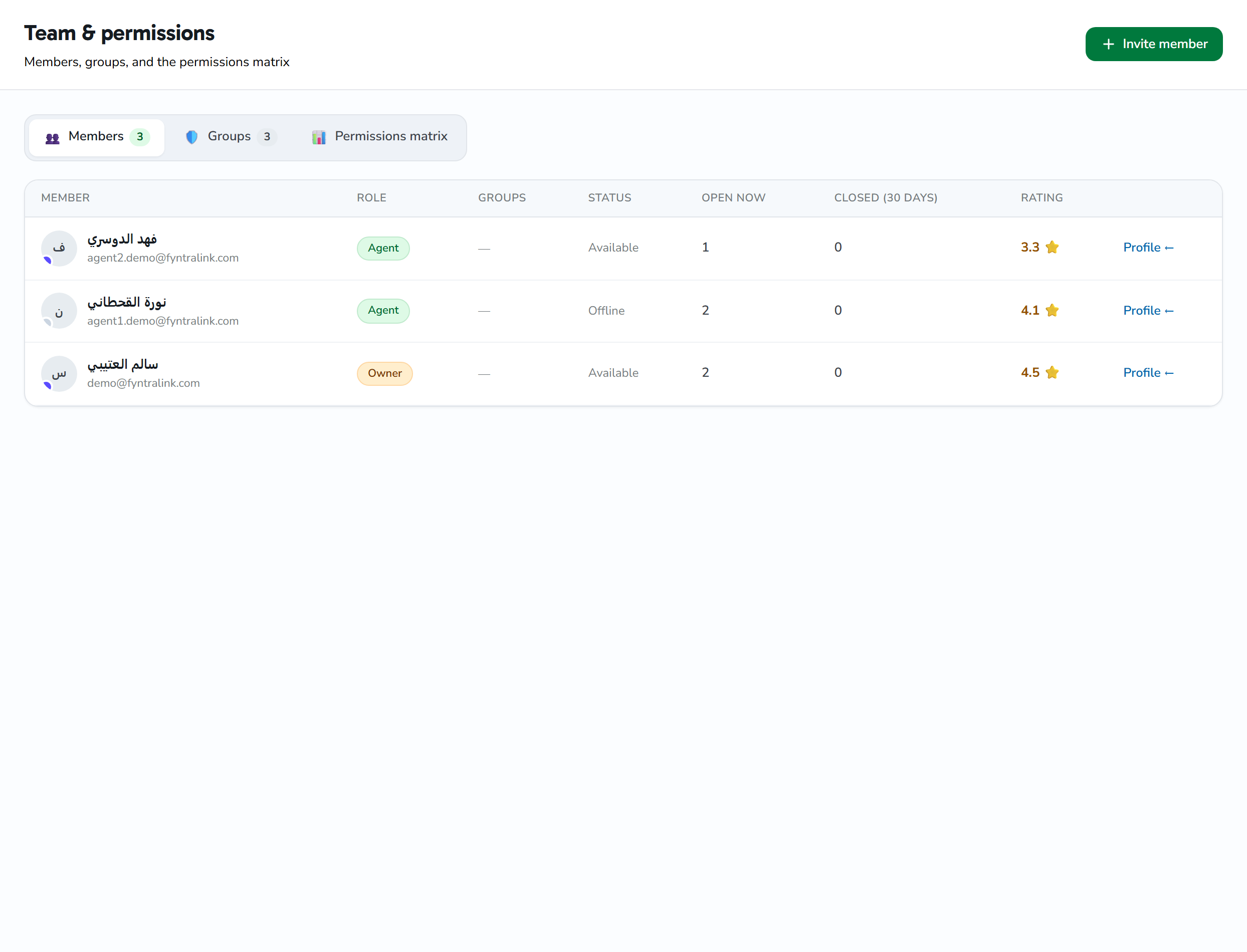
You'll find it on the Team page (/team), by clicking the Groups tab. The tab is part of that page — it has no separate URL of its own.
About "departments": there is no separate "department" entity — departments like Sales, Support, and Marketing are actually ready-made groups (system groups) that come with your account from the start. Any "department" you want, you create as a group.
The three tabs on the Team page
- Members: the list of your team members, showing each one's groups; from here you open a member's profile to assign them to groups.
- Groups: create, edit, and delete groups (the subject of this article).
- Matrix: a read-only grid showing which group holds which permission.
Built-in groups (system groups)
Your account comes with 6 ready-made system groups:
| Group | Idea |
|---|---|
| Owners | All permissions, always |
| Admins | Broad account management |
| Sales | Sales team |
| Support | Support team |
| Marketing | Marketing team |
| Read-only | View without editing |
System groups carry a "system" badge on their card and have two protections:
- They can't be deleted (the delete button is hidden, and the server blocks deletion).
- The Owners group is specially protected: it always holds every permission and can't be edited (its Edit button is disabled).
You can still create your own custom groups, as many as you like.
Creating a new group
From the Groups tab, click the "New group" card (the dashed one) to open the dialog, and fill in:
| Field | Required? | Description |
|---|---|---|
| Group name | Yes | Text name up to 100 characters. A unique internal identifier (slug) is derived from it automatically |
| Description | No | Free text up to 500 characters, shown on the group card (if left empty, a "—" is shown) |
| Color | No | An accent color you pick from 9 ready-made colors; shown on the group card's bar, on member chips, and in the matrix column |
| Permissions | No | The permission keys granted to the group, chosen from a grouped list (see below) |
Then click Save. On success you'll see a "Group created." confirmation and the group appears in the list.
The slug is generated automatically from the name, is unique within your account, and can't be edited.
Choosing permissions
Inside the dialog, permissions are shown grouped by module. Each permission has a checkbox, and each module's header is itself a button — click it to turn every permission in that module on or off at once.
- Turn a single permission on/off by clicking its checkbox.
- Turn all of a module's permissions on/off from the module header button.
Important: each save replaces the whole permission set with whatever is checked in the dialog (it isn't a partial add/remove). And members receive the union of all their groups' permissions.
Editing and deleting groups
Each group card has two buttons:
- Edit: opens the same dialog loaded with the group's data and its current permissions. Edit and Save — you'll see "Group updated.". The button is disabled on the Owners group (and trying to edit it is rejected by the server with "The Owners group is protected.").
- Delete: shown only for non-system groups. It asks for confirmation, then deletes — you'll see "Group deleted.". System groups can't be deleted ("This is a protected system group and can't be deleted.").
Assigning members to groups
A group affects no one until you add members to it. Assignment is done per member on that member's profile page (opened from the Members tab) — a separate action from managing the groups themselves. On that same profile page, each member can also have their own permission overrides (an explicit grant or deny of a single permission key), set separately.
Owners-membership limits:
- The last owner can't be removed from the Owners group.
- Granting Owners membership can only be done by an actual owner.
Permission matrix (read-only)
The Matrix tab shows a table: rows are all permissions (grouped by module), columns are all groups, and a ✓ appears where a group holds that permission. The Owners column always shows fully checked. The table is view-only — editing is done from the Groups tab.
Who can manage groups?
The Team page (and the Groups tab within it) is available to the owner and admins only — anyone else sees a "The Team page is available to admins only." error. Creating/editing/deleting groups requires the "manage groups" permission, and assigning members to groups is a separate permission. Every group belongs to your account alone and isn't visible to any other account.