 Fynchat
Connecting a Zid store
Trigger automatic WhatsApp messages on your Zid store events (orders, shipping, abandoned carts, customers) and bulk-import your data.
What does the Zid integration do?
When you connect your Zid store to Fynchat, automatic WhatsApp messages are sent when events happen in your store, such as:
- 🛒 New order — instant confirmation to the customer
- 📦 Order shipped — shipping notification to the customer
- 🧺 Abandoned cart — reminder to complete the purchase
- 🔄 Order status changed — update to the customer
- 👤 New customer — welcome message
- ⭐ New review — follow-up
You can also bulk-import your customers, orders, and abandoned carts from Zid to start with a ready-made base.
Access note: Connecting and managing require signing in with an email-verified account, and store management is limited to members of the same workspace (tenant). Connecting Zid does not require any specific subscription plan.
Before you start
Make sure that:
- You have an active Zid account and a live store.
- You've connected a WhatsApp Business account to Fynchat (see connection steps).
- You have a Meta-approved template with the same number of variables you need.
Step 1: Connect your Zid store
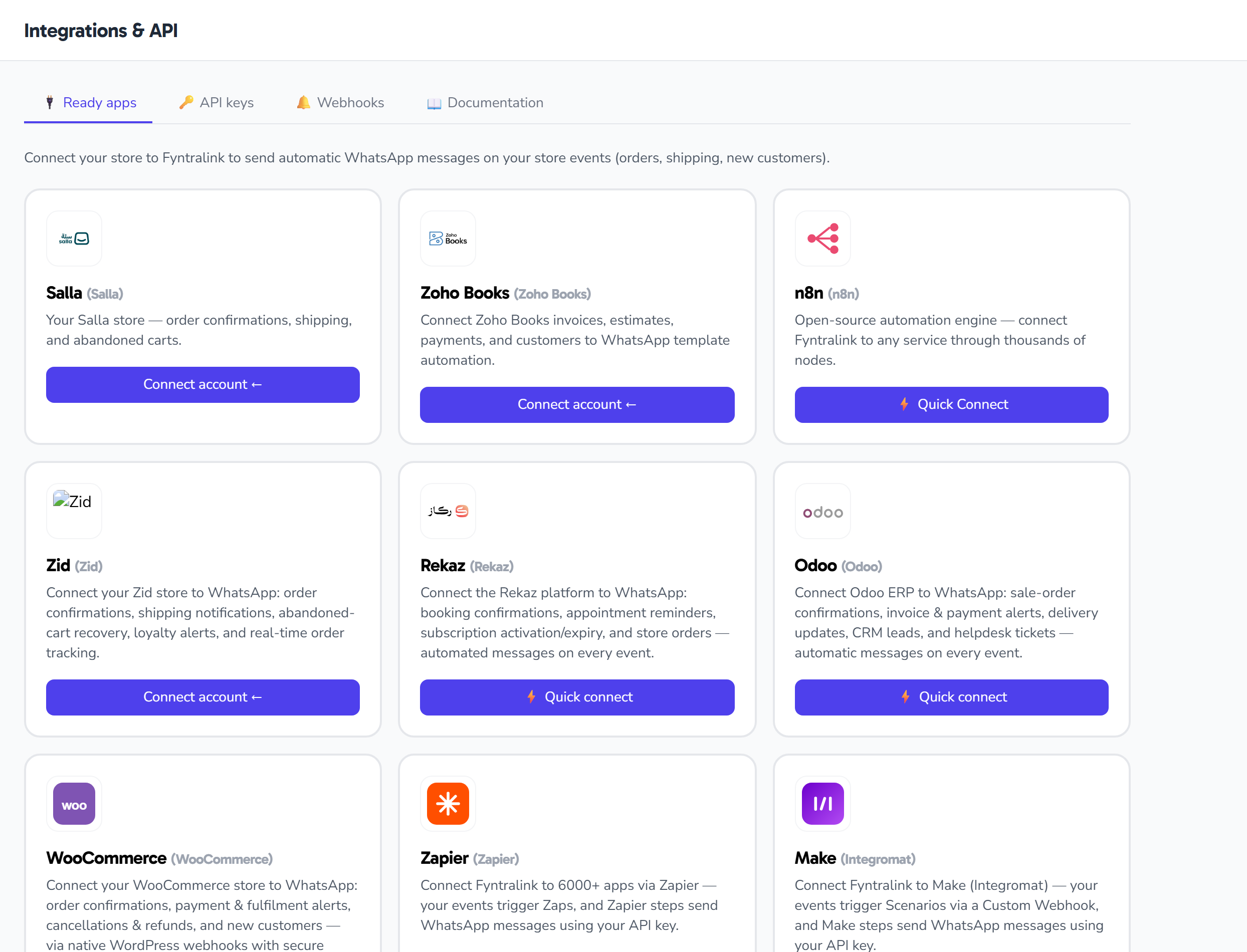
- Go to Settings → Integrations → Apps (/settings/integrations).
- On the Zid card, click Connect.
- The Zid authorization page opens → sign in with the store owner's account.
- Approve the requested permissions.
- You'll be returned automatically to the Integrations page with a success message: "Zid store connected successfully and webhooks were created automatically."
On connect, your store's default webhooks are provisioned automatically — these are what feed the events that send WhatsApp messages. If some of them can't be created, you'll see a warning telling you how many failed and asking you to retry from the app settings page (see "Re-provision webhooks").
Complete the authorization without a long delay; if the session expires you'll see an error and can retry from the Integrations page.
Installing from Zid Market
You can also install the app directly from Zid Market; you'll land on a welcome page inside Fynchat with quick links to the Dashboard, Campaigns, and Auto-replies.
Managing the store after connecting
After connecting, your store card appears on the Integrations page. Click Manage to open the store's app page (/settings/integrations/apps/{id}), where you'll see:
- Store name, URL, currency, and subscription status — fetched automatically from Zid after connecting (if Zid doesn't return a name, it falls back to a default store name).
- Merchant ID and connection status (active/inactive).
- Stats: number of active mappings, last synced, token expiry, and connected date.
All of the mapping, testing, importing, and disconnecting actions below live on this page.
Step 2: Map events to templates
On the app page, click + Map event to template and fill in:
| Field | Meaning |
|---|---|
| Event | Choose from the Zid events list (e.g. order.created) |
| Template | Choose an approved template |
| Phone field | Path to the customer's number inside the event (default: customer.phone) |
| Template variables | JSON mapping template variables to event fields |
Same mechanism as Salla: when the chosen event fires, Fynchat sends the approved template to the customer's number.
Events available for mapping:
| Event | Description |
|---|---|
order.created |
Order created |
order.status_changed |
Order status changed |
order.shipped |
Order shipped |
customer.created |
New customer |
customer.updated |
Customer updated |
cart.abandoned |
Abandoned cart |
product.created |
New product |
product.updated |
Product updated |
review.created |
New review |
Phone field and template variables
The phone field is the path the customer's number is read from inside the event data; its default value is customer.phone. If the number sits elsewhere in a particular event, adjust the path accordingly.
Template variables (Variable Mapping) is a JSON object that maps each variable in your template (by its number) to the matching field path in the event, using dots for nested paths:
{
  "1": "<event field path in Zid>",
  "2": "<event field path in Zid>"
}
- Replace the values with the actual field paths in the Zid event (written with dots, like
customer.phone). - Numbers start at "1", not "0".
- When the event arrives, Fynchat extracts these values, fills them into the template, and sends it to the phone field number.
Bulk-import your data
From the app page you can import your data from Zid to start with a ready-made base:
- Import customers — runs in the background; imported/updated counts appear when it finishes.
- Import orders — runs in the background; the processed count appears.
- Import abandoned carts — runs in the background.
Imports run as background jobs, so results may take a little while to appear.
Step 3: Test the connection
Two ways:
- Test connection from the app page — a button that checks the connection to Zid and shows the result (success/failure with a message and detail).
- Real test:
- Go to your Zid store and create a test order (you can cancel it afterward).
- You should receive a WhatsApp message within seconds on the customer's number.
Re-provision webhooks
If events aren't arriving, or you saw a warning that some webhooks weren't created at connect time, open the app page and click Create/Re-provision webhooks. Default provisioning runs again, and the status of each webhook is shown (created/failed). When all succeed, you'll see "All webhooks were created successfully."
Common issues
The "Connect" button is disabled
This means the Zid app isn't configured yet on your instance, so connecting can't start until its setup is in place. Contact support to enable it.
"The message didn't arrive"
- Confirm the template is approved (status: APPROVED).
- Confirm the phone number is correct and includes the country code.
- Confirm the phone field (
customer.phoneby default) actually exists in the event. - Try Test connection, and if needed re-provision the webhooks.
"The session expired during connect"
Retry from the Integrations page; complete the authorization without a long delay.
"Template variables (JSON) error"
- Confirm the JSON is valid (use a JSON validator).
- Variables start at "1", not "0".
- Paths use dots:
customer.phone, notcustomer/phone.
Messages stopped suddenly
The app may have been uninstalled from Zid Market, or your Zid subscription was suspended/expired — all of which deactivate the integration automatically. Check the connection status on the app page and reconnect if needed.
Message cost
Each message is billed through Meta depending on the template type. See how cost is calculated.
Disconnecting the store
From the app page, click Disconnect. Fynchat deletes all of Zid's webhooks (best-effort), then clears the tokens and deactivates the integration, and shows "Disconnected from the Zid store."
After disconnecting, no automatic messages are sent. You can reconnect at any time using the same steps.