 Fynchat
Managing WhatsApp Numbers
From the "WhatsApp & Meta" page you monitor the readiness of your connected numbers, edit their credentials, and configure and track your webhook — all without leaving Settings.
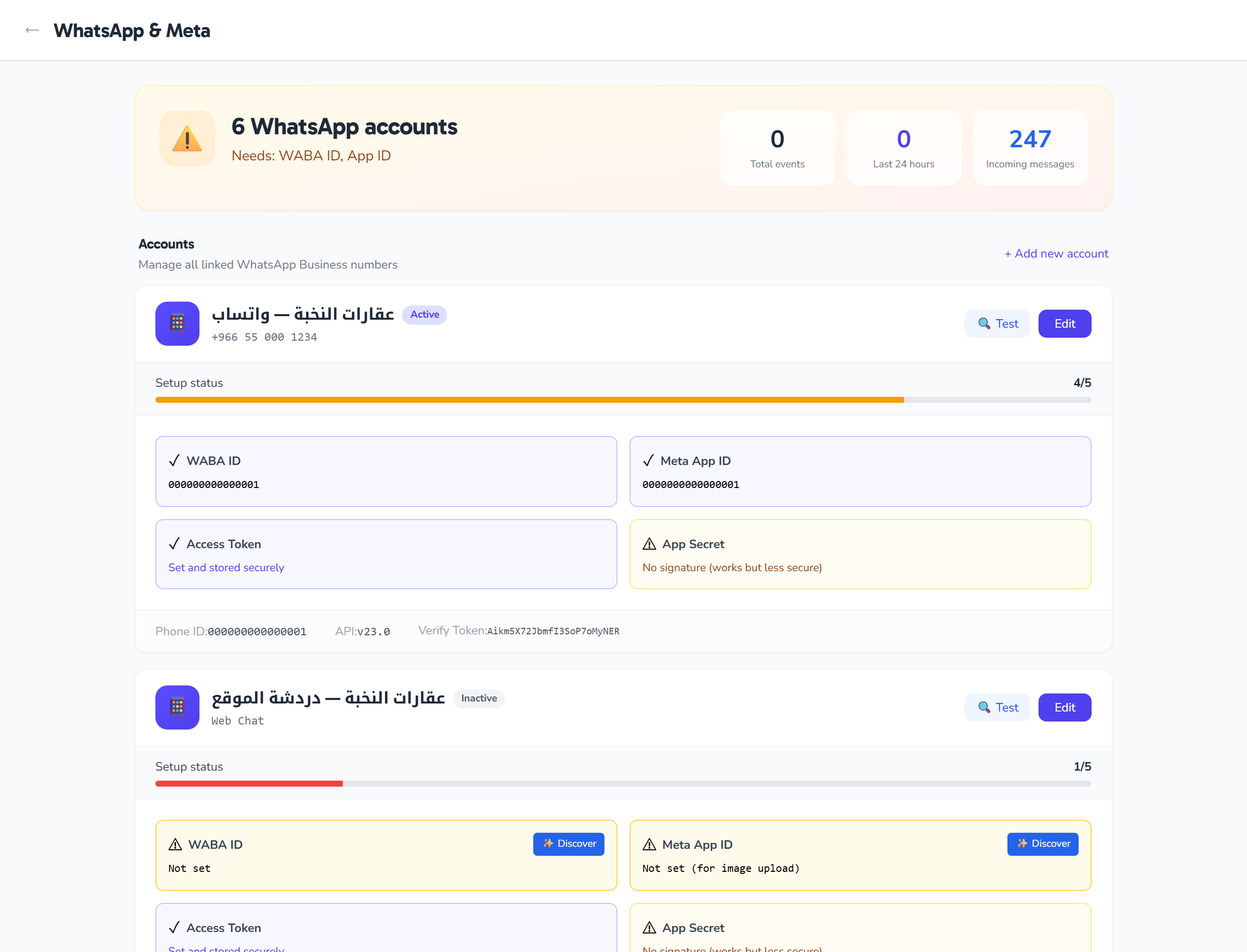
What is the "WhatsApp & Meta" page?
The WhatsApp settings page ("WhatsApp & Meta") is a full management surface for your WhatsApp Business numbers. From one place you can see each number's status and readiness, edit its credentials with Meta, and configure your webhook and follow its incoming events.
Important: this page manages and edits existing (already-connected) numbers only. Adding a new number or connecting one for the first time happens outside this page (see "Adding a new number" below).
Reaching the "WhatsApp & Meta" page requires being signed in with a verified account (verified email), an already-connected WhatsApp number, and an active subscription. If these conditions aren't met, the page may not be available to you.
Page overview
A health hero at the top summarizes your setup:
- The number of accounts linked to you.
- Overall readiness with a color indicator (green = ready, amber = something is missing).
- Three webhook KPI tiles: total events, events in the last 24 hours, and inbound messages.
Below the hero, there is one card per number containing: a status badge, a readiness score with a health bar, a setup checklist (WABA ID, Meta App ID, Access Token, App Secret), a compact info row (Phone ID, API version, Verify Token), and the per-number action buttons (Test, Edit, Discover WABA, Discover App ID).
Setup readiness (health score)
The readiness score is read-only and is computed at two levels:
- Per number: five checks out of 5 — the presence of an Access Token, a WABA ID, an App ID, an App Secret, and whether the number is Active.
- Overall: it flags what's missing across your numbers — a missing Access Token, WABA ID, or App ID, plus a non-HTTPS (insecure) webhook.
The more of these that are complete, the higher the score climbs and the indicator turns green.
Editing a number's credentials
The Edit button opens the credentials modal for a number. The fields:
| Field | Description |
|---|---|
| Name | The number's display name, shown as the card title. Optional. |
| Phone Number ID | The Meta Cloud API phone-number identifier that keys the number. Required; find it under WhatsApp → API Setup → "Phone number ID". |
| Display Phone Number | The human-readable number (e.g. +9665…), shown on the card. Auto-updated when you test the connection or connect. |
| Business Account ID (WABA) | Your WhatsApp Business Account ID; part of the setup checklist and can be auto-discovered. |
| Meta App ID | The Meta app ID used for the number; part of the setup checklist and can be auto-discovered. |
| Access Token | The secret Cloud API access token (hidden field). Sent only if you re-enter it; if you leave it blank it stays unchanged, and the system never returns its raw value. |
| Verify Token | The webhook verify token for this number; editable, and also shown read-only in the webhook setup section. |
| App Secret | The secret used to validate webhook payload signatures (hidden field). Sent only if you re-enter it. |
| API Version | The Graph API version for the number. Options: v25.0, v24.0, or v23.0. |
| Active | A checkbox to enable or disable the number; it drives the Active/Inactive badge and counts toward the readiness score. |
On save, your changes are sent and the page reloads. Secret fields (Access Token and App Secret) left blank are not sent, so your saved values aren't overwritten.
Per-number actions
| Action | What it does |
|---|---|
| Test connection | Verifies the credentials with Meta and reports the verified name and quality rating, auto-fills the display number, and switches the number's status to "Connected". |
| Edit / Save changes | Opens the credentials modal and saves your edits; blank secret fields aren't sent. The page reloads on success. |
| Discover WABA | Auto-detects the Business Account ID via Meta. The button appears only when a saved access token exists and the WABA ID is missing. |
| Discover App ID | Auto-detects the Meta App ID. The button appears only when a saved access token exists and the App ID is missing. |
Webhook setup
The webhook section gives you what you need to configure Meta to send events to you:
- Callback URL: a read-only URL you copy (copy button) and paste into Meta, with an indicator showing whether it's secure (HTTPS) or not.
- Verify Token: shown read-only for the first number, with a copy button, for configuring the Meta webhook.
- Subscribe to webhook events: a button that subscribes your app to the WABA and phone webhooks of the first number, so incoming events start flowing.
Webhook activity log
Below the webhook setup, an activity log shows the most recent incoming events (up to eight), displaying for each one whether it was processed, its type, and an error badge when it failed. A Refresh button reloads just the stats and events without reloading the whole page.
The total events and last 24 hours tiles at the top of the page count these same webhook events; the inbound messages tile is a separate count of received inbound messages.
Adding a new number
Adding a new number or connecting one for the first time is not done on this page. At the top there's a Manage all link, and when you don't have any number yet an Add button appears; both take you out of the settings page to where a number is added or connected.
For the steps to connect a new number (via Embedded Signup or manual entry), see the "Connect Your WhatsApp Business Account" article.
Tips and troubleshooting
- Don't see the Discover WABA / Discover App ID button? Neither appears until an Access Token is saved, and only while the matching ID is still missing. Enter the token first.
- Webhook shows insecure? The Callback URL must be over HTTPS; overall readiness flags a non-secure URL as something to fix.
- Events not arriving? Use the Subscribe to webhook events button, then watch the activity log and click Refresh to follow them in.
- Editing without losing secrets: leave Access Token and App Secret blank if you don't intend to change them; blank fields won't overwrite saved values.
- The page also includes a collapsible Troubleshooting section that gathers fixes for common problems.
Read next
- How to get WhatsApp Business API in Saudi Arabia — requirements, timelines and common blockers
- The green tick and account verification
- WhatsApp vs WhatsApp Business vs WhatsApp API