 Fynchat
Connect Your WhatsApp Business Account
How to link your WhatsApp Business number to Fynchat using two different methods.
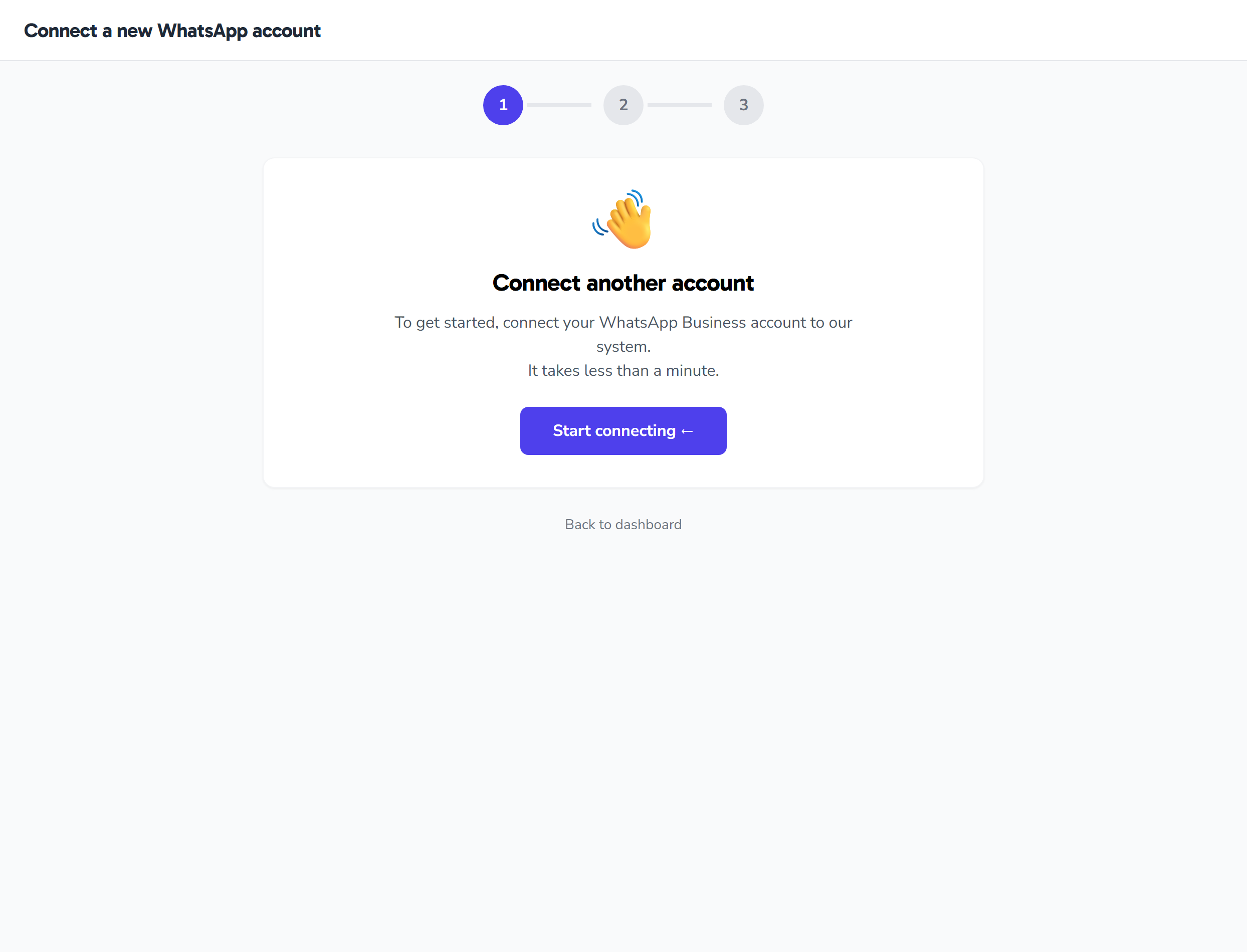
What do you need before you start?
- A phone number not currently used in the regular WhatsApp app
- A Meta Business Manager account (created automatically if you don't have one)
- If you choose manual entry: you need a Phone Number ID + WABA ID + Access Token
Method 1: Embedded Signup (recommended)
The easiest and fastest — Meta handles everything automatically.
- Go to /onboarding after logging in
- Click "Connect via Embedded Signup"
- A Facebook window opens → enter your details
- Choose a Business Manager or create a new one
- Choose the phone number you want to use
- Complete number verification (SMS or call)
- Approve the permissions
- Done! Your account is connected ✅
Method 2: Manual entry
Use this method if:
- You already have a WhatsApp Business account with Meta
- You use a System User Token (for production)
- Embedded Signup doesn't work in your region
Steps:
- Go to Meta Business Manager
- WhatsApp Manager → API Setup → copy:
- Phone Number ID (15 digits)
- WhatsApp Business Account ID (WABA)
- Create a System User Token:
- Business Settings → System Users → Add
- Give it a name and assign it the Admin role
- Generate New Token → choose the app + the permissions:
whatsapp_business_managementwhatsapp_business_messagingbusiness_management
- Copy the token (you won't see it again)
- In Fynchat → Onboarding → "Manual entry" → paste the values → click Connect
After connecting
- Test sending by sending a message to your personal number from the Inbox screen
- Create your first template to send a campaign (see: Creating templates)
- Import contacts from a CSV file
Common issues
- "Phone Number not found" error: Make sure the number is activated in Meta Business Manager
- "Token expired": Use a System User Token (long-lived) instead of a User Token (expires after two hours)
- Embedded Signup shows "Sorry, something went wrong": The app is in Development Mode — contact us
Read next
- How to get WhatsApp Business API in Saudi Arabia — what you need before connecting
- WhatsApp vs WhatsApp Business vs WhatsApp API
- WhatsApp message pricing