 Fynchat
Connecting a Salla Store
Trigger automated WhatsApp messages on your Salla store events (orders, shipping, abandoned carts).
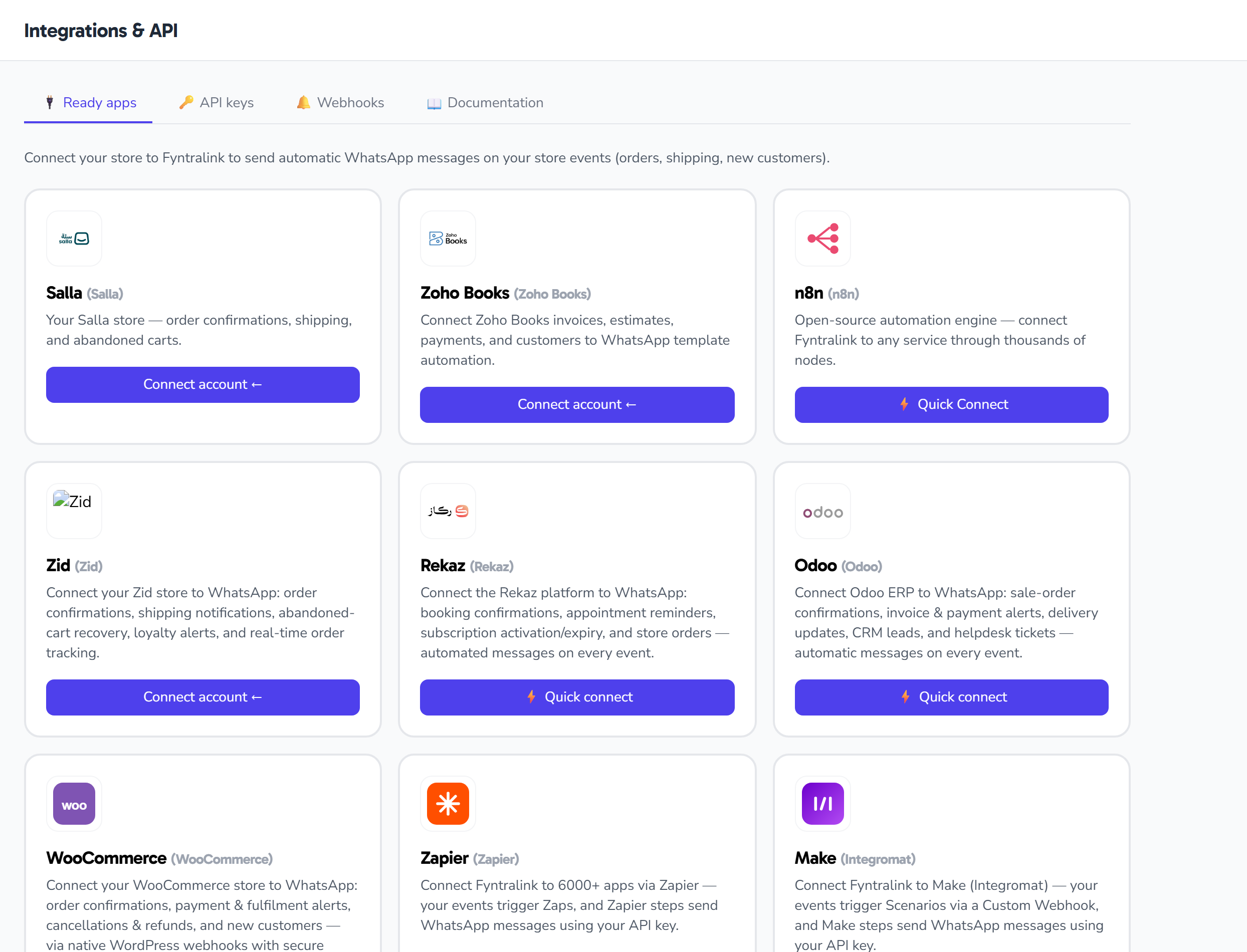
What does the integration offer?
Once you connect your Salla store to Fynchat, you can send automated WhatsApp messages on:
- 🛒 New order — instant confirmation to the customer
- 📦 Order shipped — tracking link
- ❌ Abandoned cart — remind the customer to complete the purchase
- 👤 New customer — welcome message
- ⚠ Order canceled — notification
Before you start
Make sure that:
- You have an active Salla account + a live store
- You have connected a WhatsApp Business account to Fynchat (see connection steps)
- You have a Meta-approved template with the same number of variables you need
Step 1: Install Fynchat from the Salla App Store
The whole connection happens on Salla's side — nothing technical to configure here:
- In your Salla dashboard, open the App Store
- Search for Fynchat and open the app page
- Click Install and approve the requested permissions
- You are taken to Fynchat automatically
What happens automatically on install:
- Your Fynchat account is created and a welcome email with sign-in details is sent
- Your plan, tied to your Salla subscription, is activated
- Website chat is installed on your storefront
- Your product catalogue starts syncing
- AI agent capabilities open on your store data
The only step left for you: connect your WhatsApp Business number — the notification templates are then created and submitted to Meta for approval on their own.
Step 2: Map events to templates
After connecting, your store card appears. Click + Map event to template:
| Field | Explanation |
|---|---|
| Event | Choose from the list (e.g. order.created) |
| Template | Choose an approved template |
| Phone field | The path within the event (default: customer.phone) |
| Template variables | JSON mapping the template variables to the event fields |
Example: new order confirmation
Template (Meta-approved):
Hi {{1}}! Your order number {{2}} has been received.
Amount: SAR {{3}}.
We'll contact you shortly to confirm.
Variable Mapping:
{
  "1": "customer.name",
  "2": "order.reference",
  "3": "order.amount"
}
When an order.created event arrives from Salla, Fynchat extracts:
customer.name→ "Ahmed Mohammed"order.reference→ "#1234"order.amount→ "150"
Then it sends the template to customer.phone automatically.
Available fields in each event
Every Salla event contains:
customer.name       (full name)
customer.phone      (+966...)
customer.email
customer.id
order.id            (internal numeric ID)
order.reference     (order number shown to the customer)
order.amount        (total)
order.status        (status name)
order.shipping_url  (tracking link — in the shipping event)
Step 3: Test the connection
- Go to your Salla store
- Create a test order (you can cancel it afterward)
- You should receive a WhatsApp message within seconds on the customer's number
- Check the delivery log in Fynchat: Settings → Integrations
Common issues
"The message didn't arrive"
- Check that the template is approved (status: APPROVED)
- Check that the phone number is correct (includes the country code)
- Check that
customer.phoneactually exists in the Salla event (not every event contains a phone)
"Variable Mapping error"
- The JSON must be valid (use a JSON validator)
- Variables start with "1", not "0"
- Paths use dots:
customer.name, notcustomer/name
"Message cost"
- Every message incurs a charge via Meta (varies by template type)
- See how cost is calculated
Disconnecting the integration
From the store card → Disconnect. The account remains, but:
- Tokens are deleted
- No automated messages are sent after disconnecting
You can reconnect at any time using the same steps.
More on the Salla integration
- Salla order notifications on WhatsApp — what is sent, when, and how to tailor it
- AI answers from your Salla products and orders — what the agent answers from your store data
- Salla orders inside the shared inbox — what your agent sees beside the conversation
- Salla product catalogue sync — how your products arrive and stay current
- WhatsApp message costs for a Salla store — who bills you, and for what